Crop Tools
The Crop Tools are incredibly useful when you want to achieve one of two things:
- Reveal internal structures in your volume render.
- Narrow your focus to a specific region of interest in the volume.
Box Crop
Activate this tool by clicking the Box Crop Tool button in the toolbar, with the icon above. A box widget will be placed on your volume. The widget has a handle on each face, represented by a red sphere.
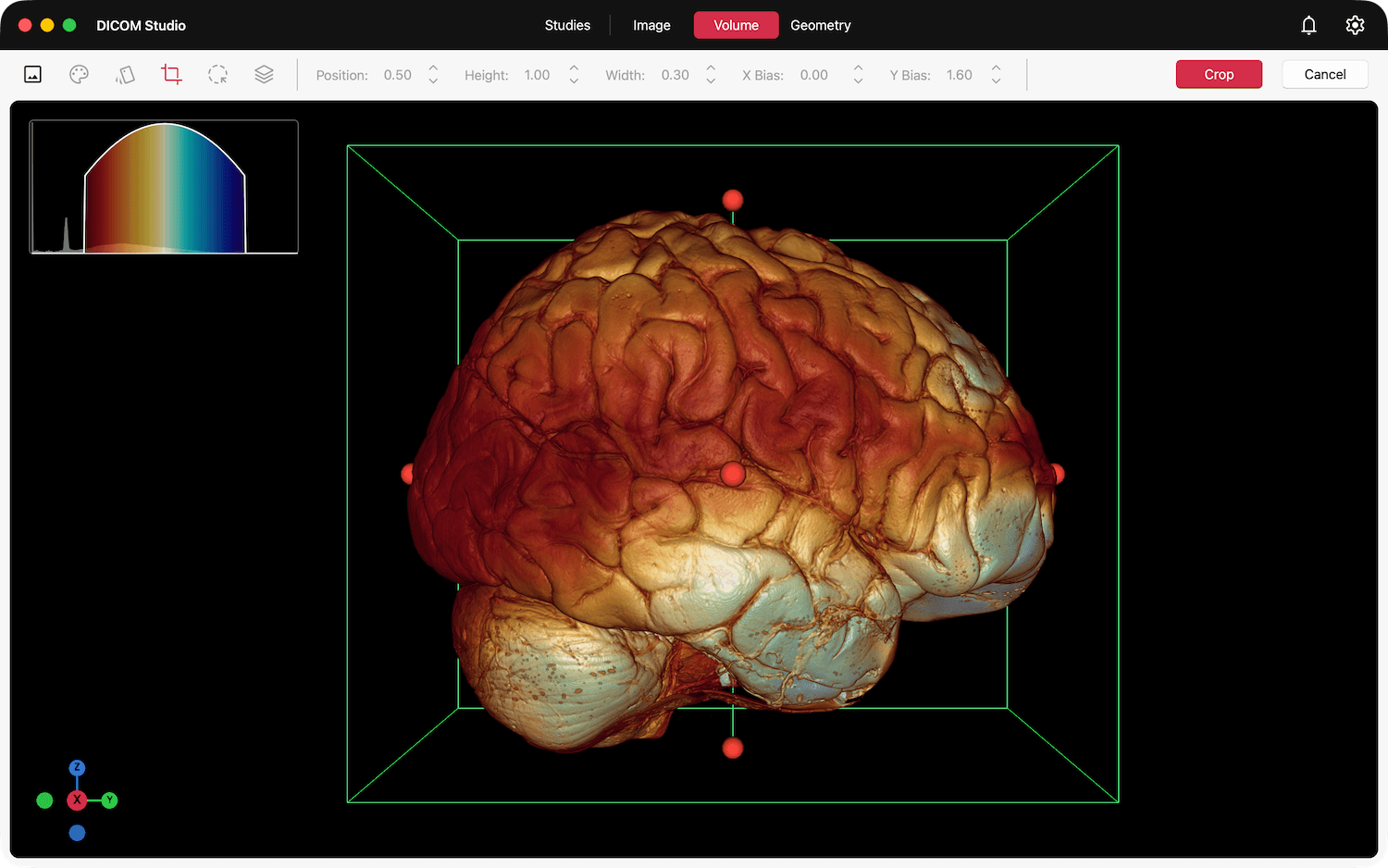
Select a handle and drag inwards to effect a crop.
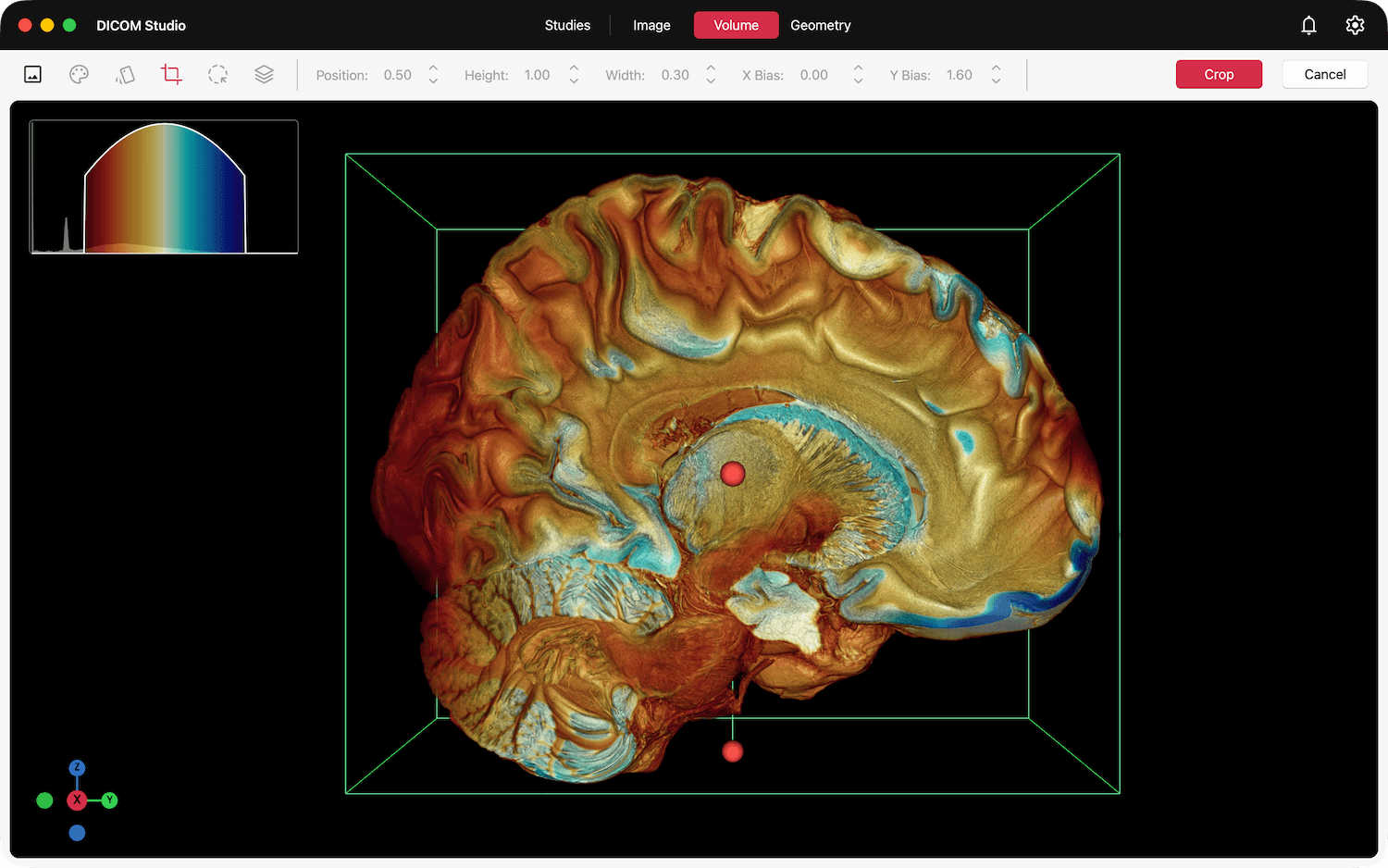
Click the Crop button in the toolbar to save the crop. Click Cancel to undo any changes.

Lasso Selection Crop
Activate this tool by clicking the Lasso Crop Tool button in the toolbar, with the icon above. Once active, left-click on any point on the Volume View and drag to draw the Lasso Selection. The selection is represented by a green line, updated in real-time.
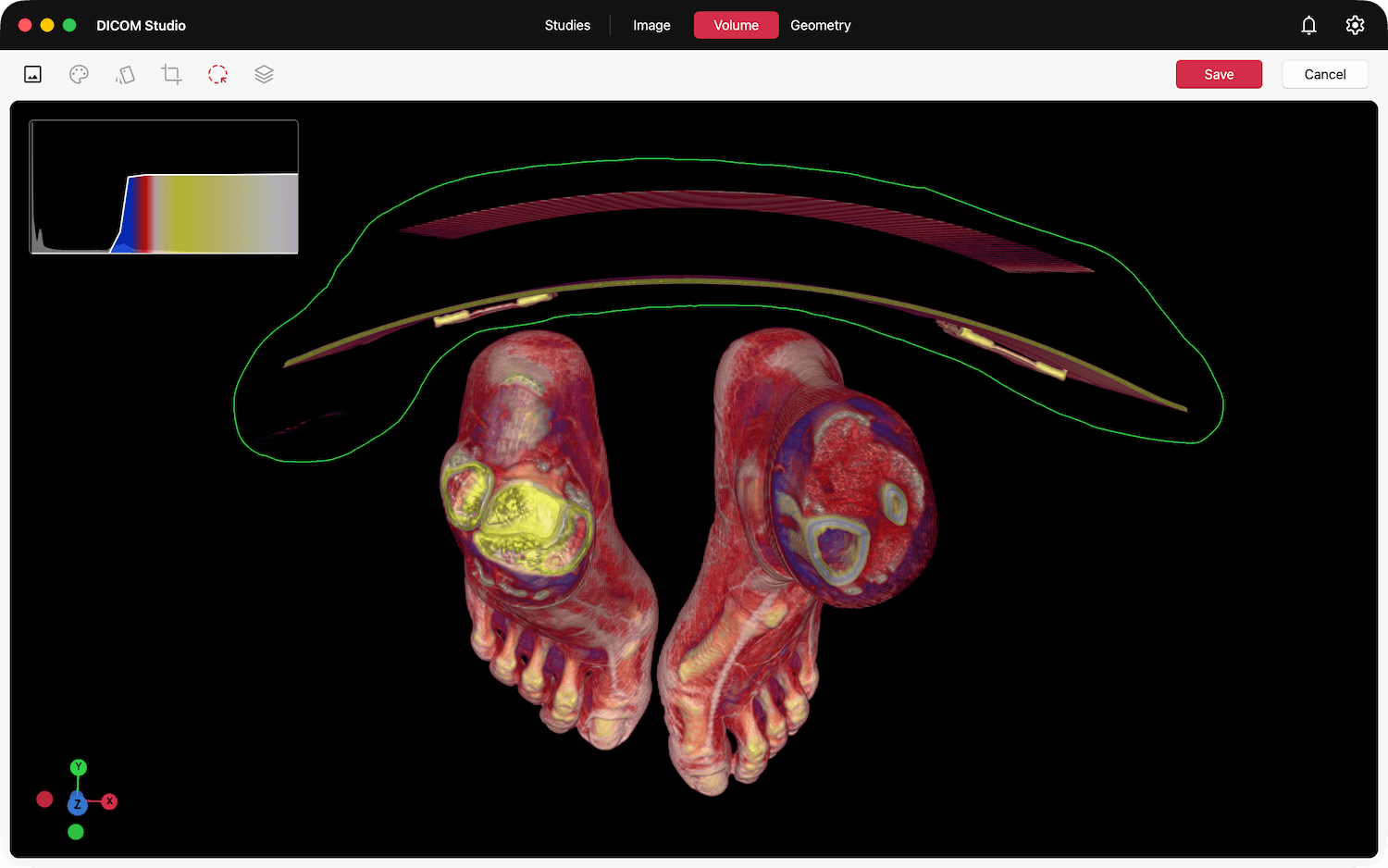
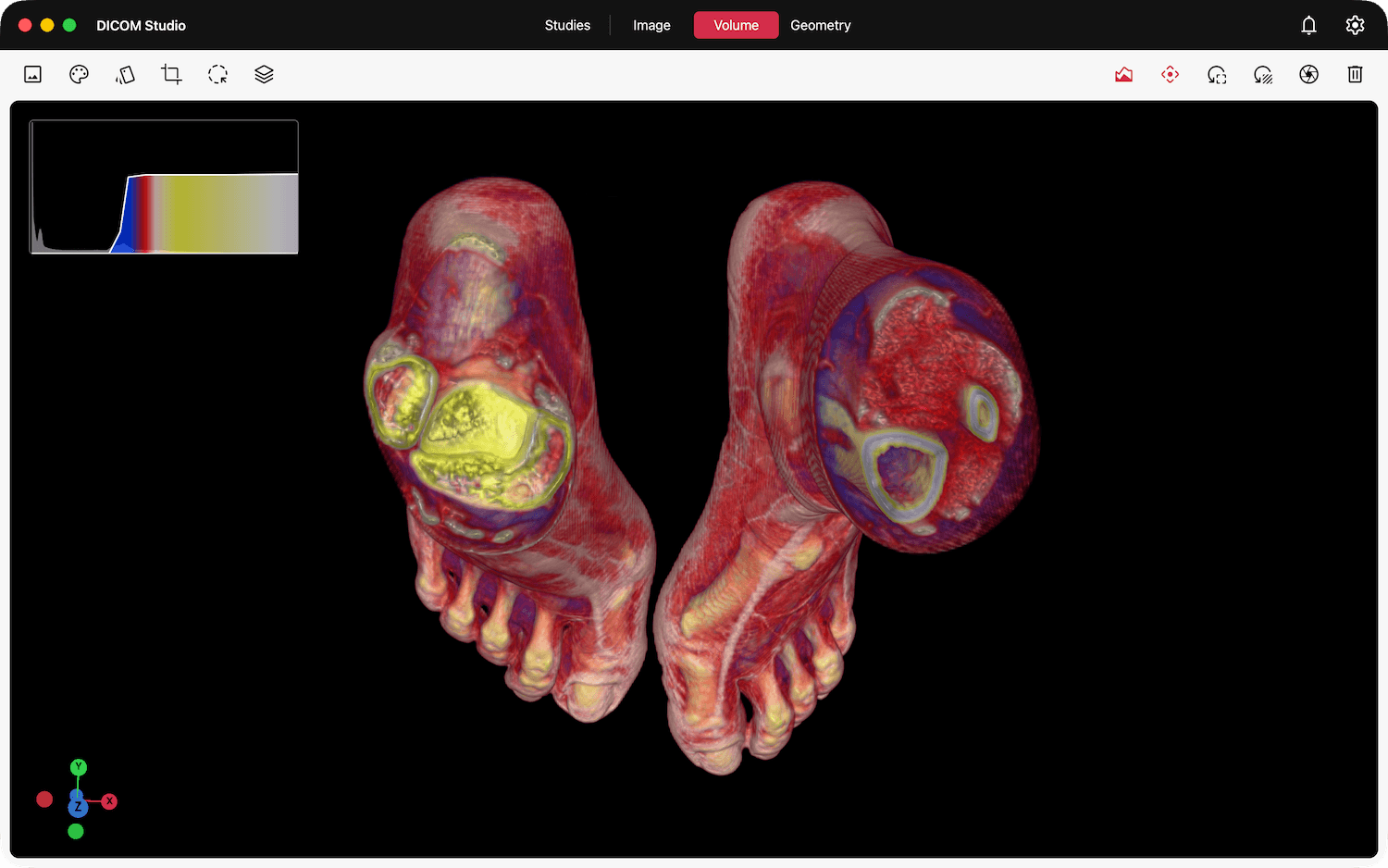
Click the Save button in the toolbar to effect the crop. Click Cancel to undo any changes.
Lower-End GPUs
As stated above, the crop tools can be very useful if you want to narrow your focus to a specific region of interest in your image data. An additional benefit of this is a reduction in the load on your device's GPU. If you have an entry-level device, it is likely that volume rendering can be incredibly taxing on your device's GPU, especially if you're dealing with image datasets of a very high resolution. You may experience slower frame rates as you interact with objects in the scene.
Cropping removes unwanted portions of the dataset, focusing computation on visualizing relevant regions. This enhances rendering efficiency, speeding up ray casting and reducing GPU load for interactive exploration.