Share Studies
Converting a series of DICOM files to a single file is very convenient when you want to share with others. DICOM Studio offers three primary ways to achieve this:
- Export a DICOM Study to a .zip file.
- Export a DICOM Series to a .zip file.
- Convert a DICOM Series to a NIfTI file.
Options 2 and 3 are particularly useful if you don't want to share an entire study, but just a single series belonging to the study.
Export a DICOM Study
Click the Share Study button in the toolbar. On macOS, this button can be identified by the icon below on the left. On windows, the button has the icon below on the right.
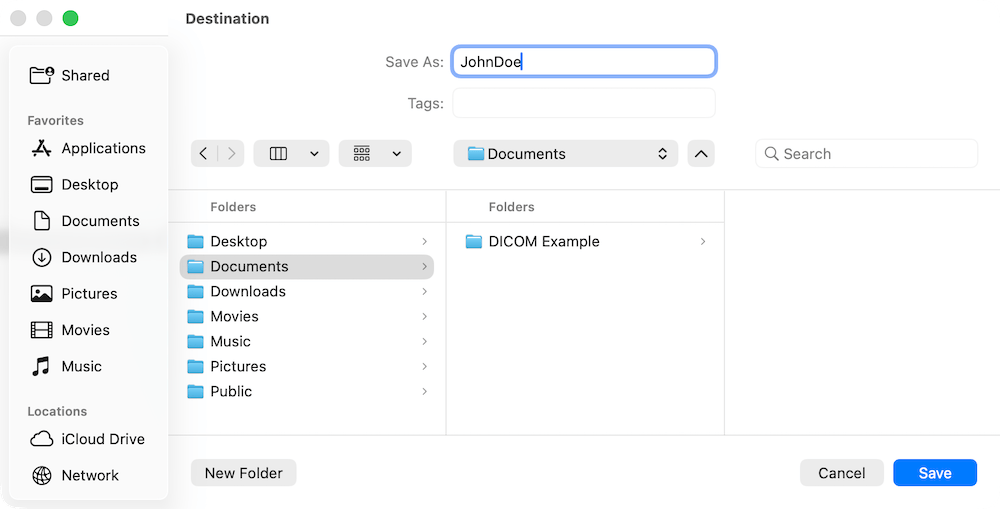
A dialog will open. Navigate to the location where you want to save the .zip file. Enter the name for the .zip file, and click save.
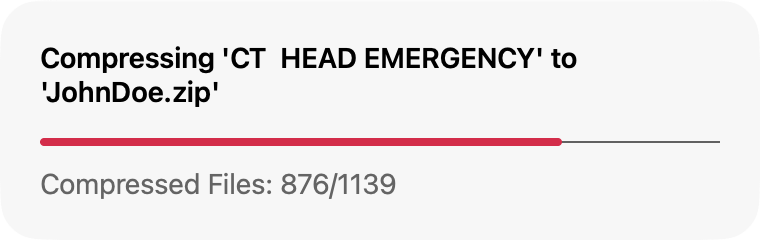
Track the progress of the compression.
Once complete, find the entire study compressed to a single .zip file in the location you chose.
Export a DICOM Series
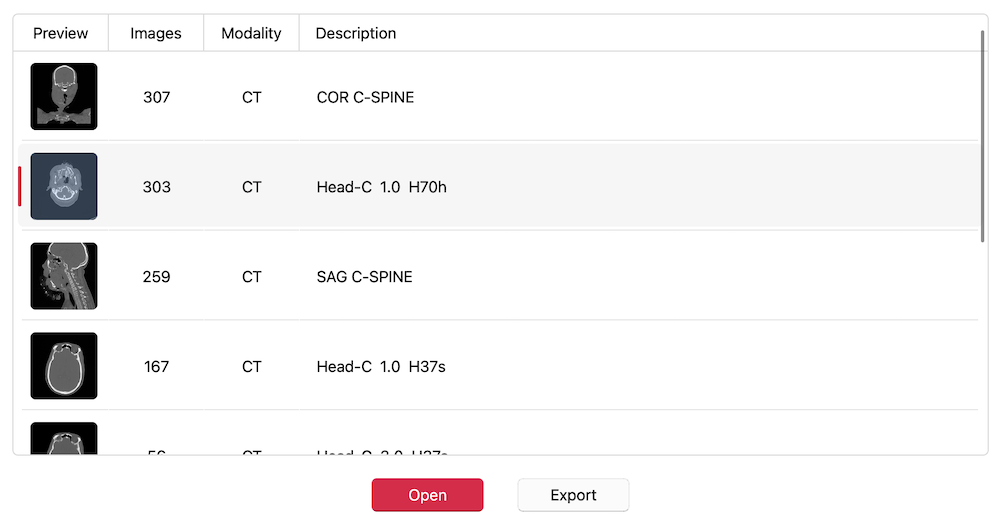
Select a study, then select a series from the Series Preview Table. Click Export.
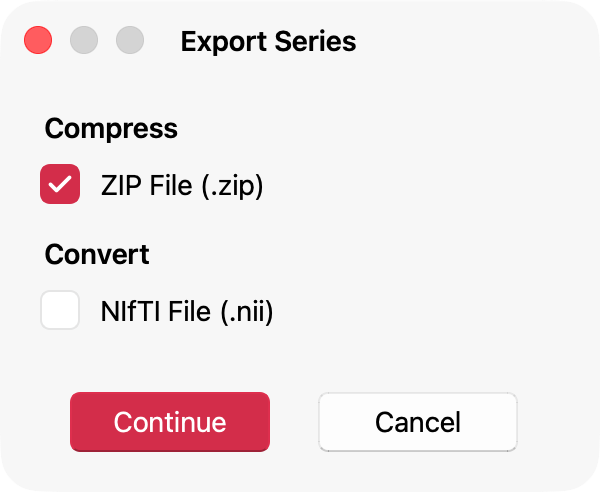
The dialog below will open. Check ZIP File and click Continue.
Navigate to the location where you want to save the .zip file. Enter the name for the .zip file, and click save.
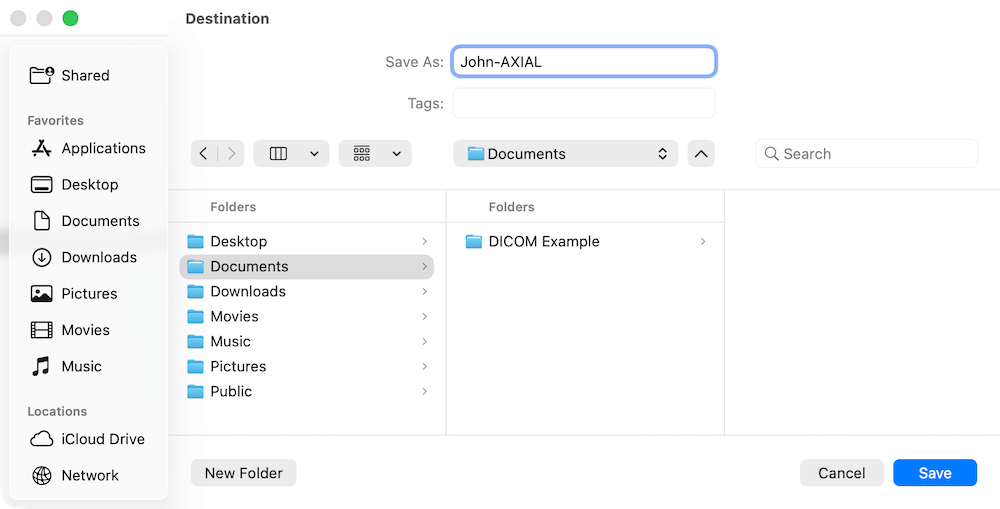
Your chosen DICOM series will be compressed to a single .zip file in a few seconds.
Convert a DICOM Series to a NIfTI File
Select a study, then select a series from the Series Preview Table. Click Export.
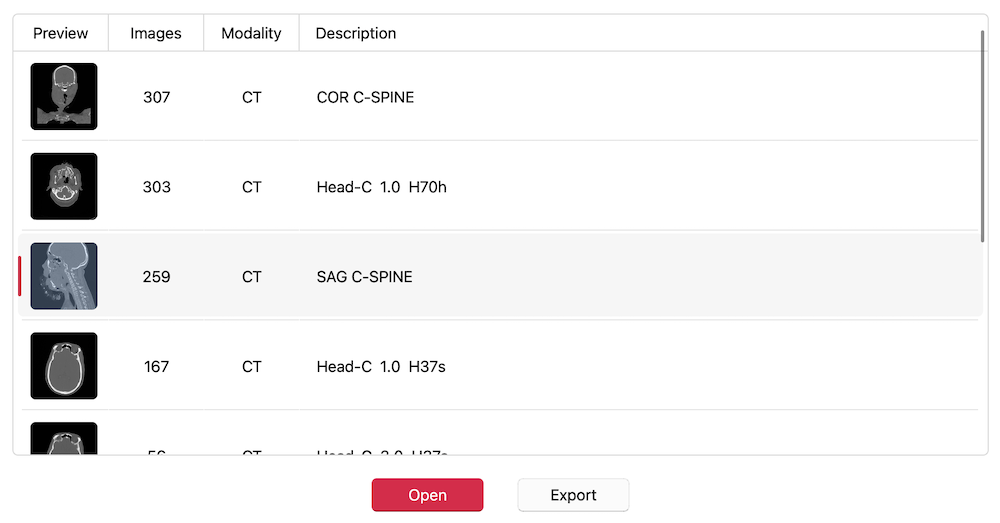
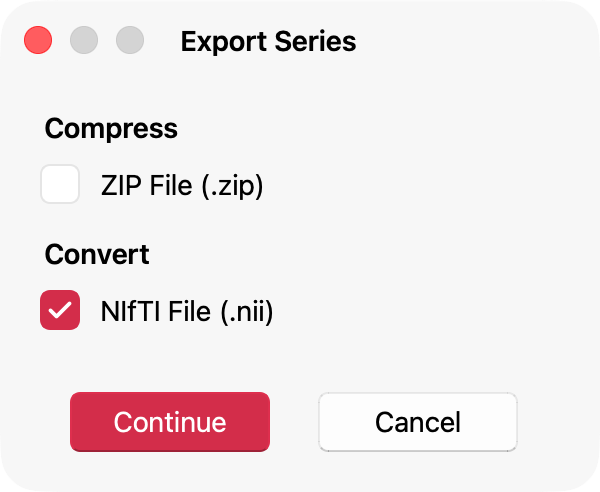
The dialog below will open. Check NIfTI File and click Continue.
Navigate to the location where you want to save the .nii file. Enter the name for the .nii file, and click save.
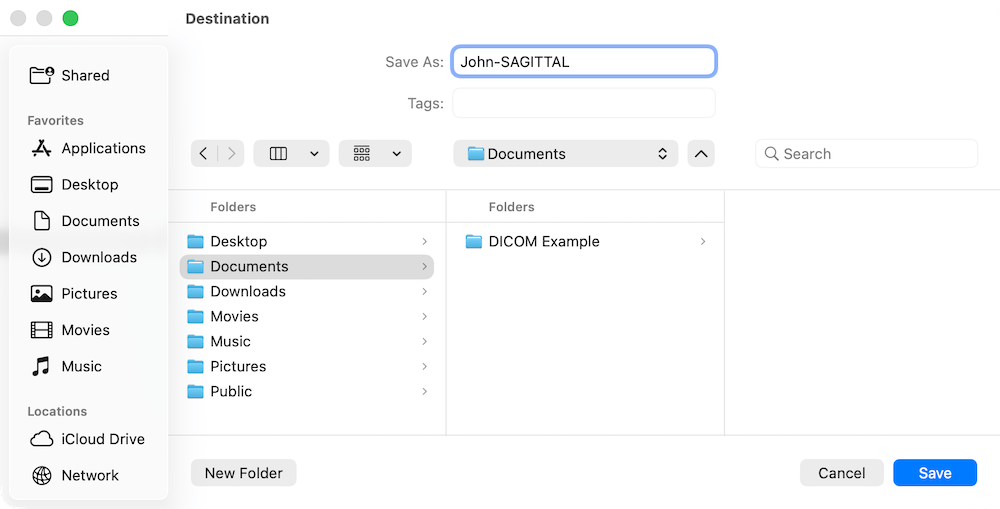
Your chosen DICOM series will be converted to a single .nii file in a few seconds.
Note: The exported NIfTI file will match the format determined in the NIfTI Settings found as follows: Settings -> Imaging -> NIfTI. Learn more about DICOM Studio's NIfTI features in the NIfTI Datasets section.