The Studies Tab
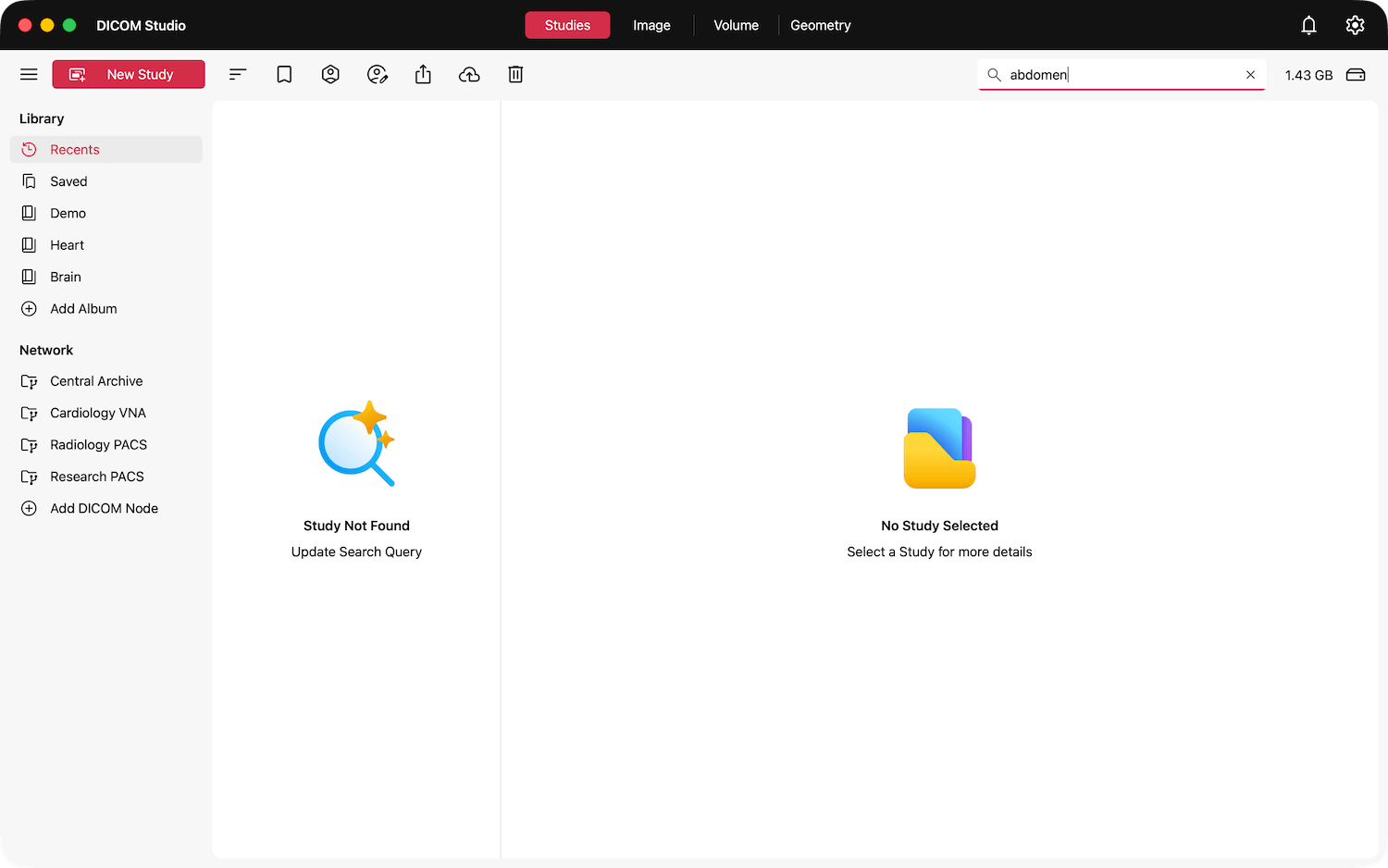
It is important to understand the layout of the studies tab before proceeding. Below DICOM Studio's titlebar, is a toolbar containing tools exclusive to the studies tab. To the left is a prominent New Study button and all the study management tool buttons. To the right is a search widget and a summary of the total storage space used by studies stored in the 'Saved' library.
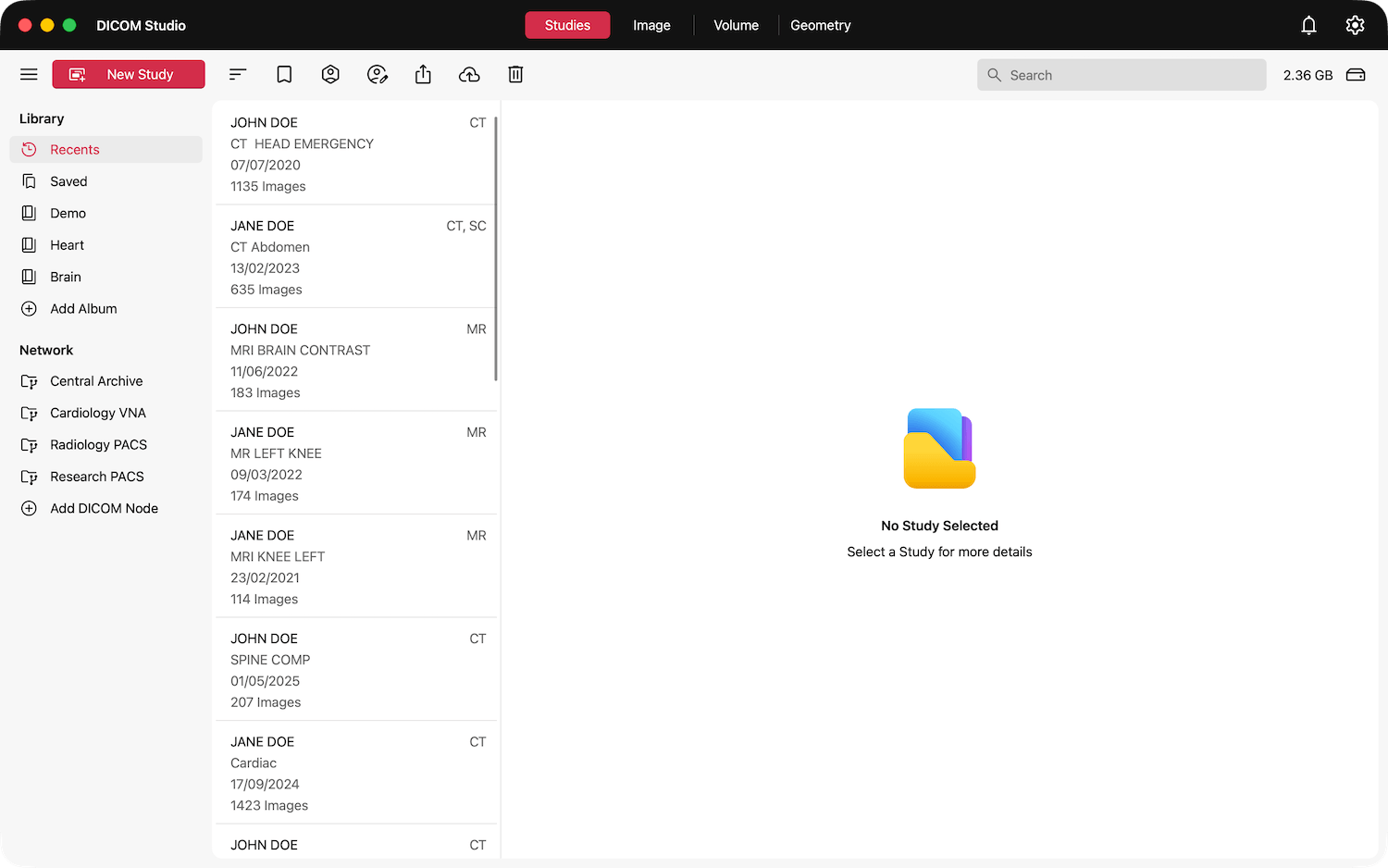
Below the toolbar, on the left, is a sidebar. All libraries and DICOM nodes are listed here. Libraries are lists of studies grouped into a specific category. The main two libraries are: Recents and Saved. The Recents library contains the last 20 studies opened in DICOM Studio. As the name suggests, the Saved library contains studies that you save. When a study is saved, it is copied to a DICOM Studio storage location on your device. Learn more about the Saved library and Albums in the Save Studies section.
Found below the libraries are DICOM Nodes that you add to DICOM Studio. DICOM Nodes, and DICOM Studio's networking features, are covered in detail in the Network Configuration section.
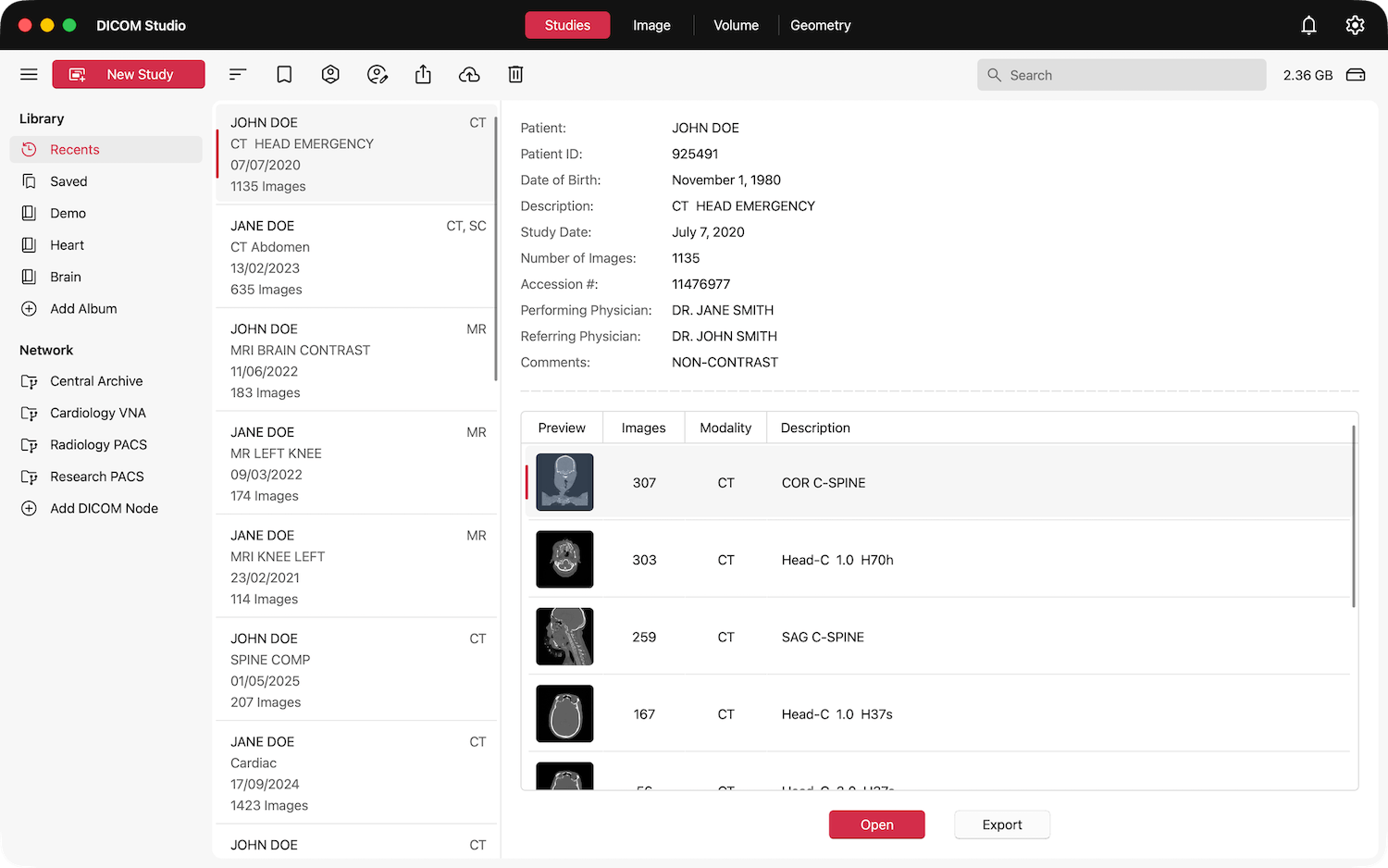
The main body of the Studies tab is covered by the Study and Series Previews. All the Studies in a library are listed in the left column. Each row contains a summary of a DICOM Study: Patient Name, Study Description, Study Date, Total Images, and Modality. When a row is selected, more information on the Study is revealed. All details are extracted from the Study's DICOM tags.
The table (bottom-right) lists all the Series found in the Study. Select a row, and click the Open button to load that series onto the 2D MPR Views in the Image Tab. Use the Export button to save the selected series externally, either compressed to a .zip file, or in NIfTI Format (.nii). Learn more about the Export tools in the Share Studies section.
Sort Studies
Next to the New Study button is a tool button with the icon above. This is the Sort button. When clicked, the menu below will appear. The list of Study Summaries follows the order selected here.
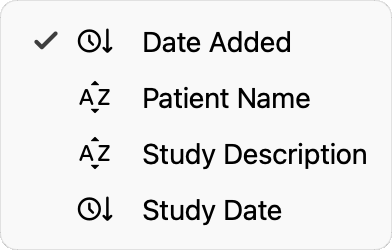
The summaries are sorted according to the Date Added by default. However, you can change the sort parameter at any time to Patient Name, Study Description or Study Date. Note that this sort parameter will be applied to all libraries. The chosen sort parameter is also saved, and will be applied in future application startups. Pick the option that best suits your workflow.
Search for a Study

You can search for a study using the search widget in the toolbar. Accepted search parameters include:
- Patient Name.
- Study Description.
- Study Date.
- Modality.
Type in any search term, and the studies in view will be shortlisted accordingly. Search terms do not have to be an exact match, and are case insensitive.
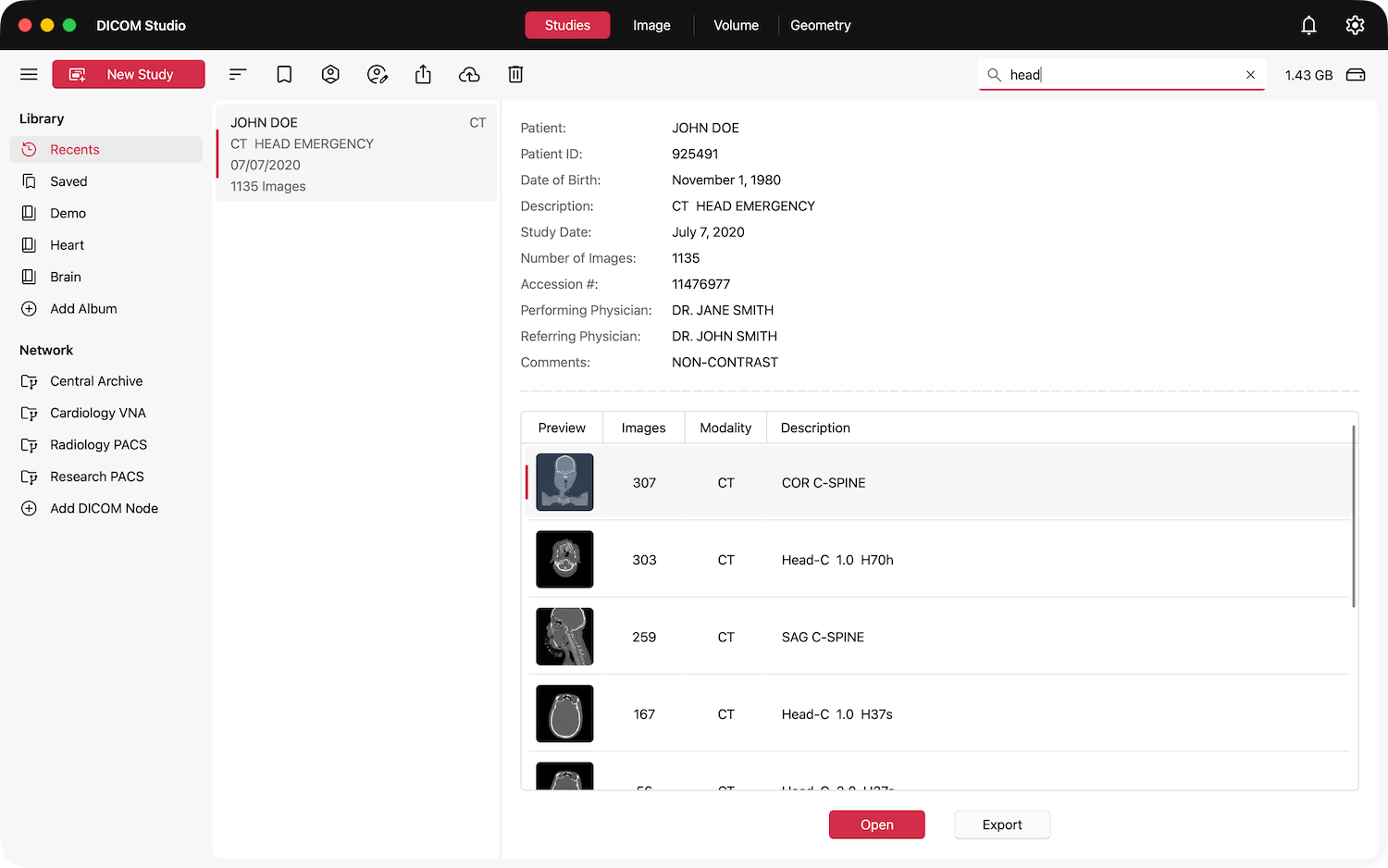
If no study matches your search, this will be indicated as below. Refine your search term and try again. Results are updated dynamically.
Delete Studies
While studies in the Recents library are limited to 20 in number, studies in the Saved library have no such limitations. The only constraint that the Saved library faces is the available disk space on your device. However, if you no longer need a study, or want to reduce the amount of storage space used on your device, select the study and click the delete icon above from the toolbar. The selected study will be permanently deleted from the DICOM Studio's storage location.
The Used Storage Space indicator, found next to the search widget in the toolbar, will be updated accordingly. This widget allows you to easily keep track of the size of your Saved library.