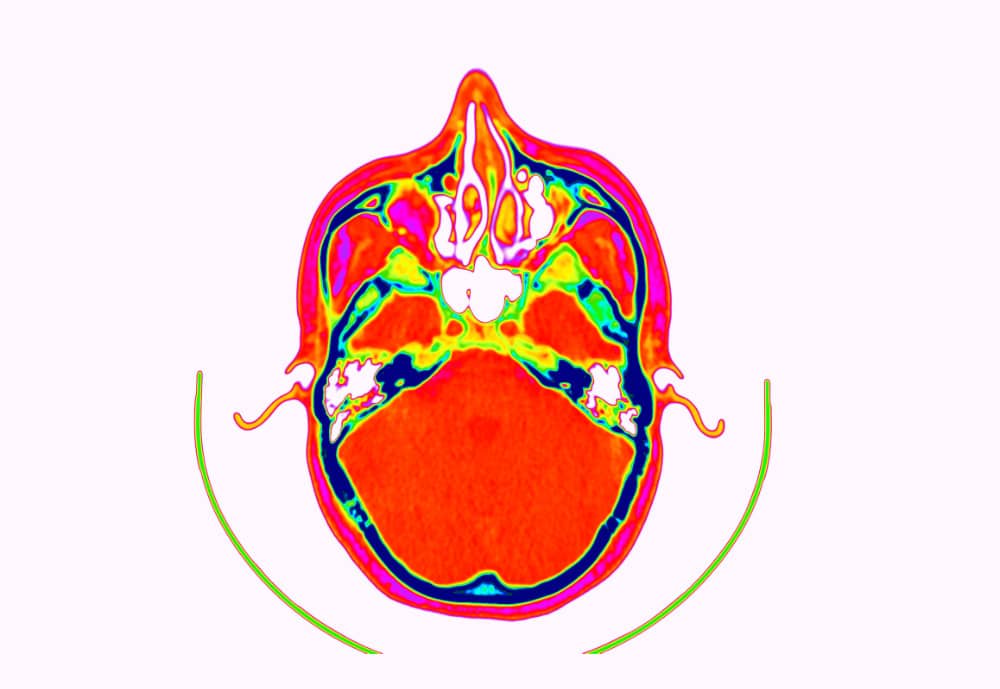
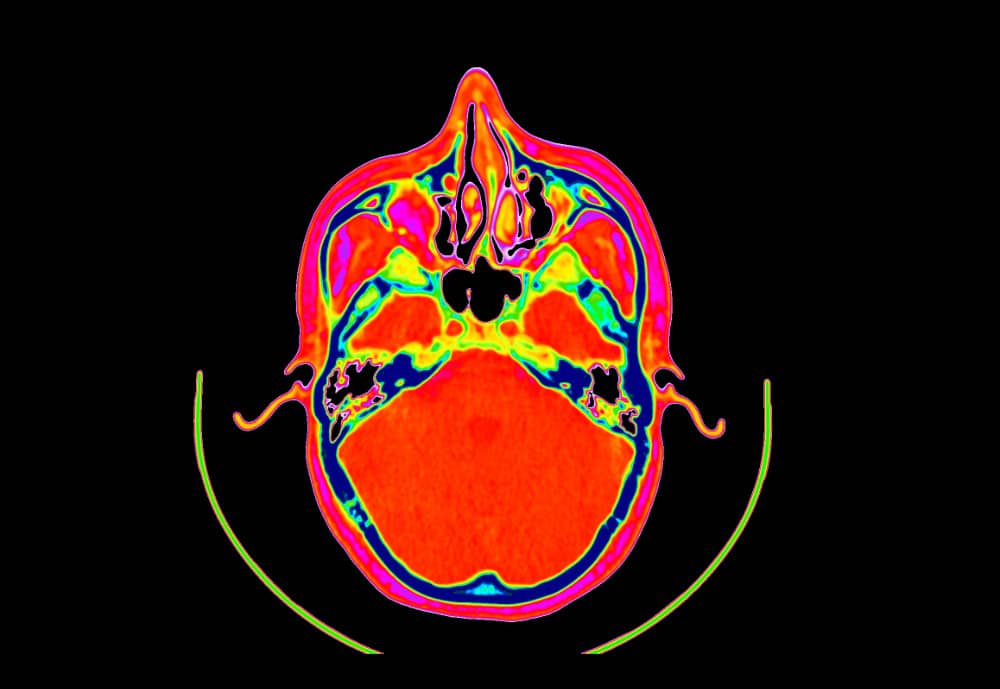
2D Colormaps
In DICOM Studio, you can apply distinct colormaps to your images, to enhance your view of the intricate details in each slice. The colormaps come in two sets:
- Perceptually Uniform Colormaps.
- DICOM Standard Color Palettes.
The primary feature of the Perceptually Uniform Colormaps is that when applied, equal steps in data are perceived as equal steps in the color space. These colormaps are frequently used in scientific study, and may be easily recognizable, with common examples including Jet and Plasma.
The DICOM Standard Color Palettes are defined in the DICOM Standard. They include:
- Hot Iron: The Hot Iron color palette is often used in nuclear medicine applications to make differences in signal intensity (counts) more apparent to the human observer.
- PET: The PET color palette is often used in PET applications to pseudo-color the superimposed PET images when displayed fused with underlying CT images.
- Hot Metal Blue: The Hot Metal Blue colour palette is often used in nuclear medicine or PET applications to make differences in signal intensity (counts) more apparent to the human observer.
- PET 20 Step: The PET 20 Step colour palette is often used in PET applications to make differences in signal intensity (counts) more apparent to the human observer.
- Spring, Summer, Fall & Winter: These Colour Palettes are suggested for use in colour fMRI activation maps. They shade from one pastel colour to another which is distinctly different, making them suitable for illustrating either unipolar or bipolar activation. They convey activation strength within one statistical parametric map, while making it possible for the human observer to distinguish between different fMRI activation maps in the same blended display.
Colormap Application
Apply colormaps from the Image Menu in the menubar: Image -> Window Level & Window Width Presets. Pick one and it will be applied instantly to all slices in the Image Views.
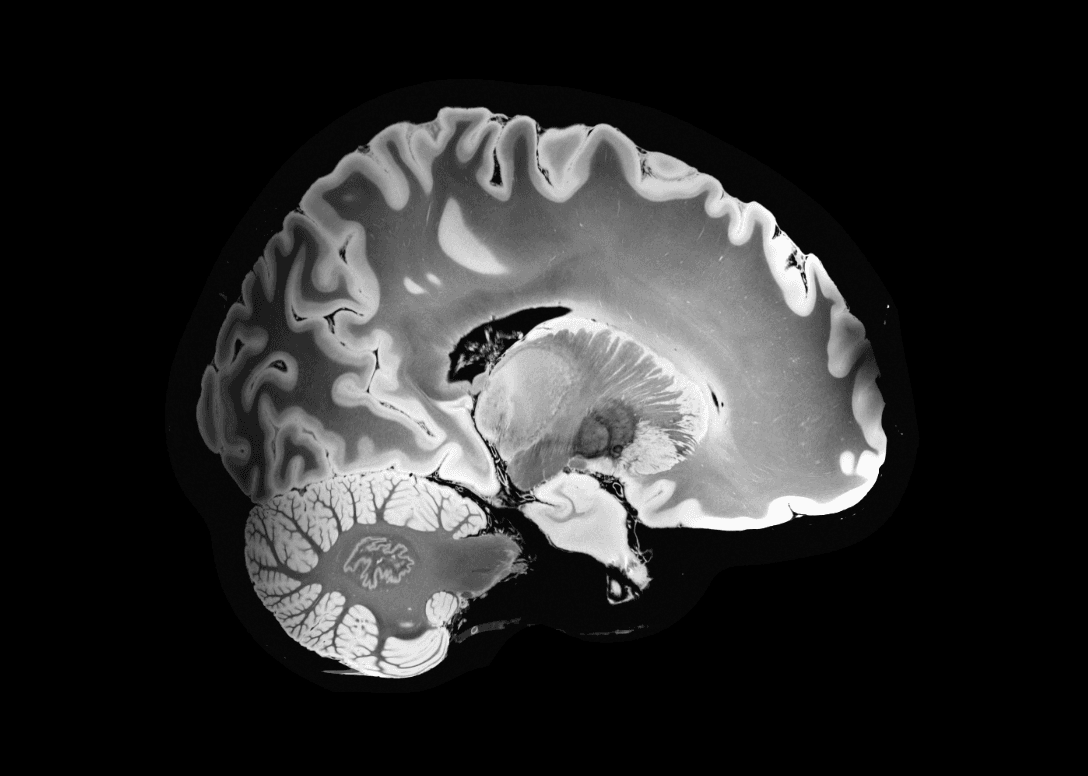
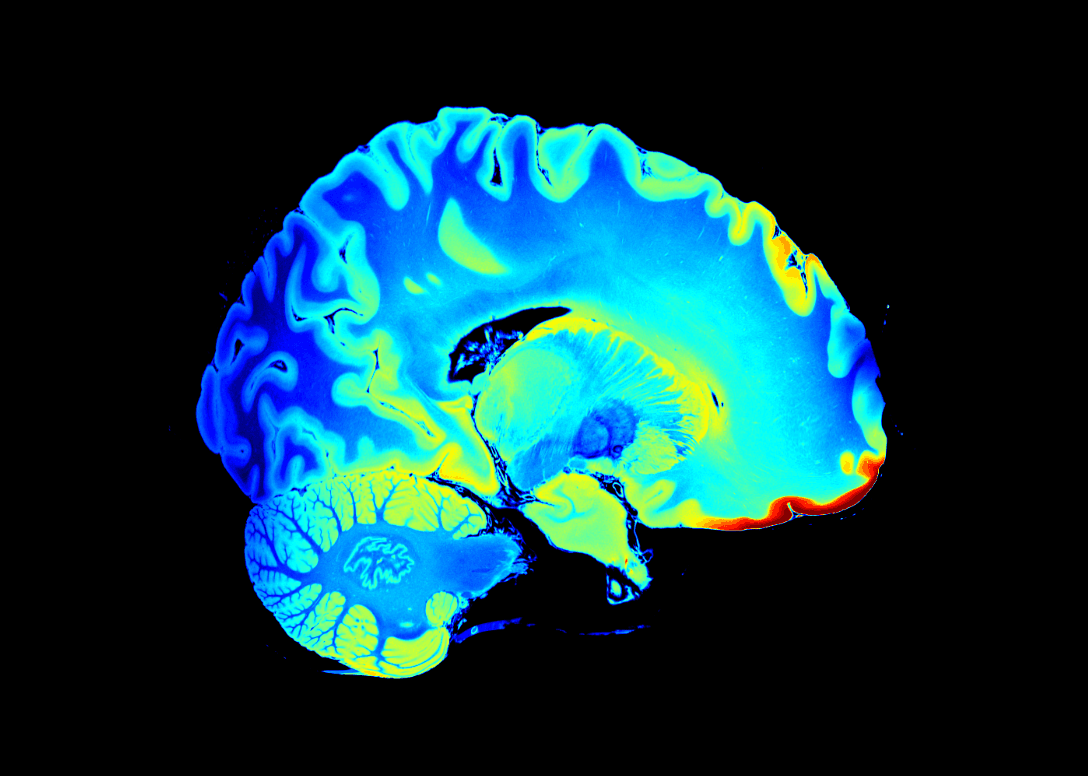
Black Colormap Base
To enhance contrast, you may want to alter colormaps whose background color isn't black. This feature can be toggled on/off from the Image Menu in the menubar: Image -> Black Colormap Base.