Region of Interest Tools
As described in the Isosurface Creation section, given a minimum and maximum value, a 3D isosurface will be created representing the areas in your image dataset that fall within this threshold. Occasionally, the resulting 3D model will contain disconnected regions that you have no interest in. This is where the ROI tools come in.
Extract the Largest Connected Surface
This is a relatively simple tool. Click the Extract Largest Region button in the toolbar, with the icon above, and the size of each disconnected part is calculated. All but the largest are discarded.
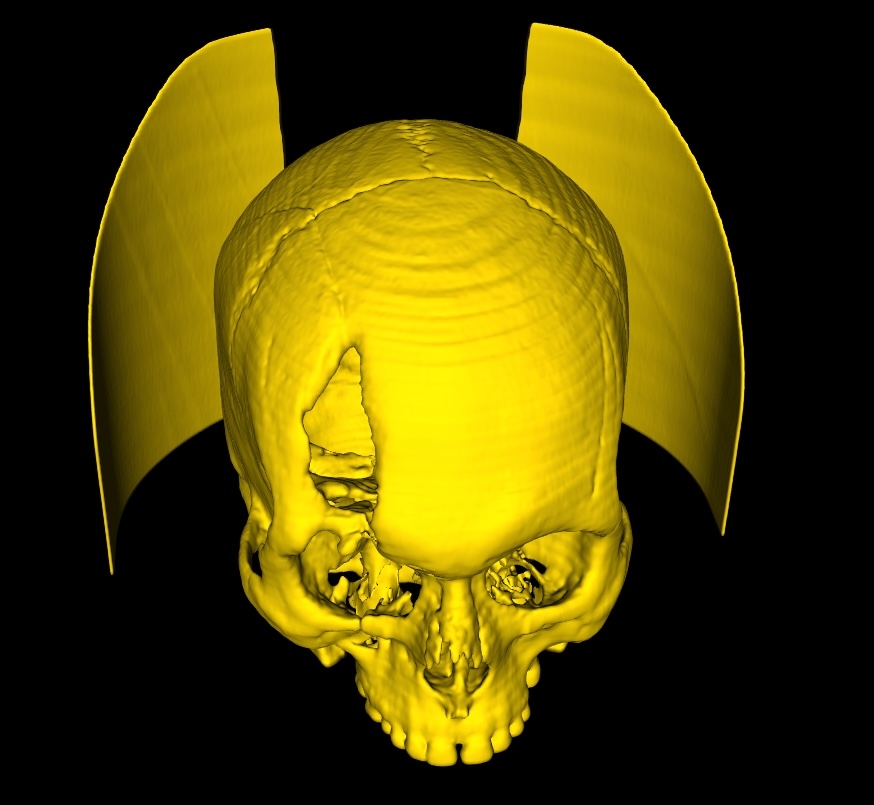
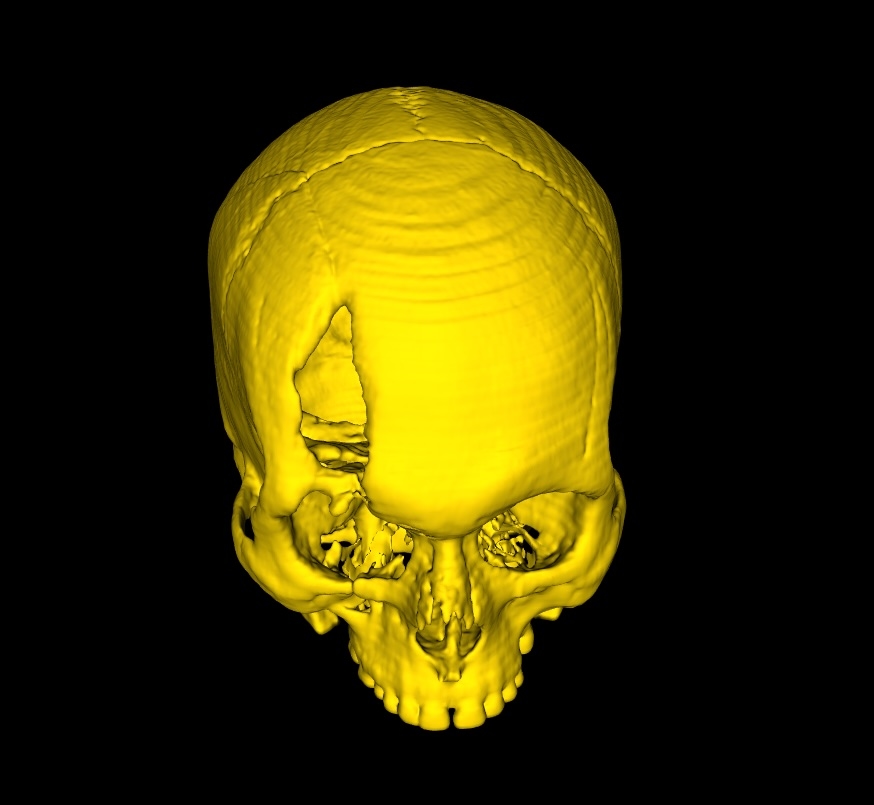
Select Regions of Interest
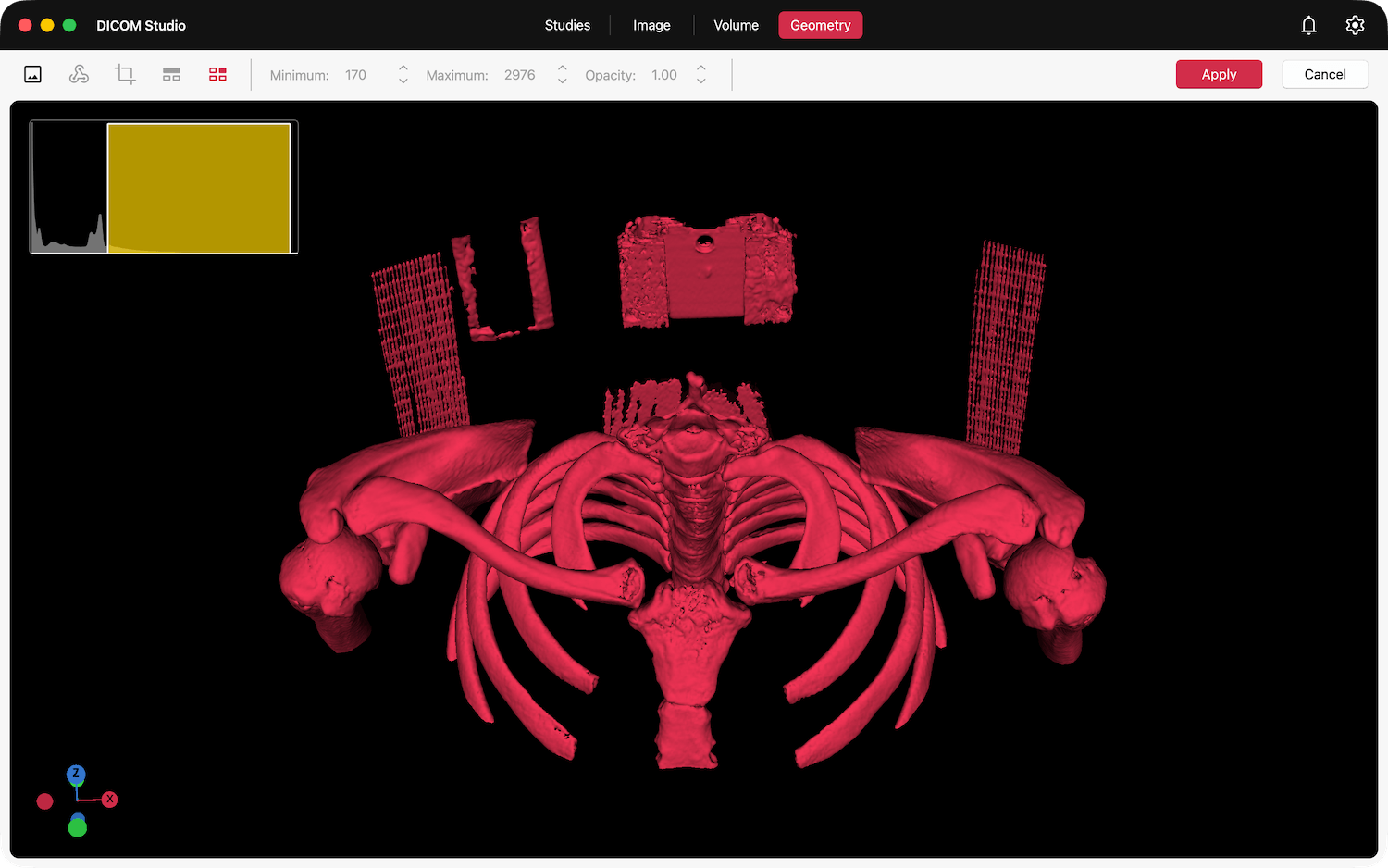
This tool works in a slightly different way. All disconnected parts are identified and temporarily treated as separate models. Click the Select Region of Interest button in the toolbar, with the icon above, and DICOM Studio will take a moment to separate each part. Once complete, all will be displayed in red.
Left-Click on each part that you want to keep. Any part you select will turn green. Right-Click on any part you accidentally select, turning it red once again.
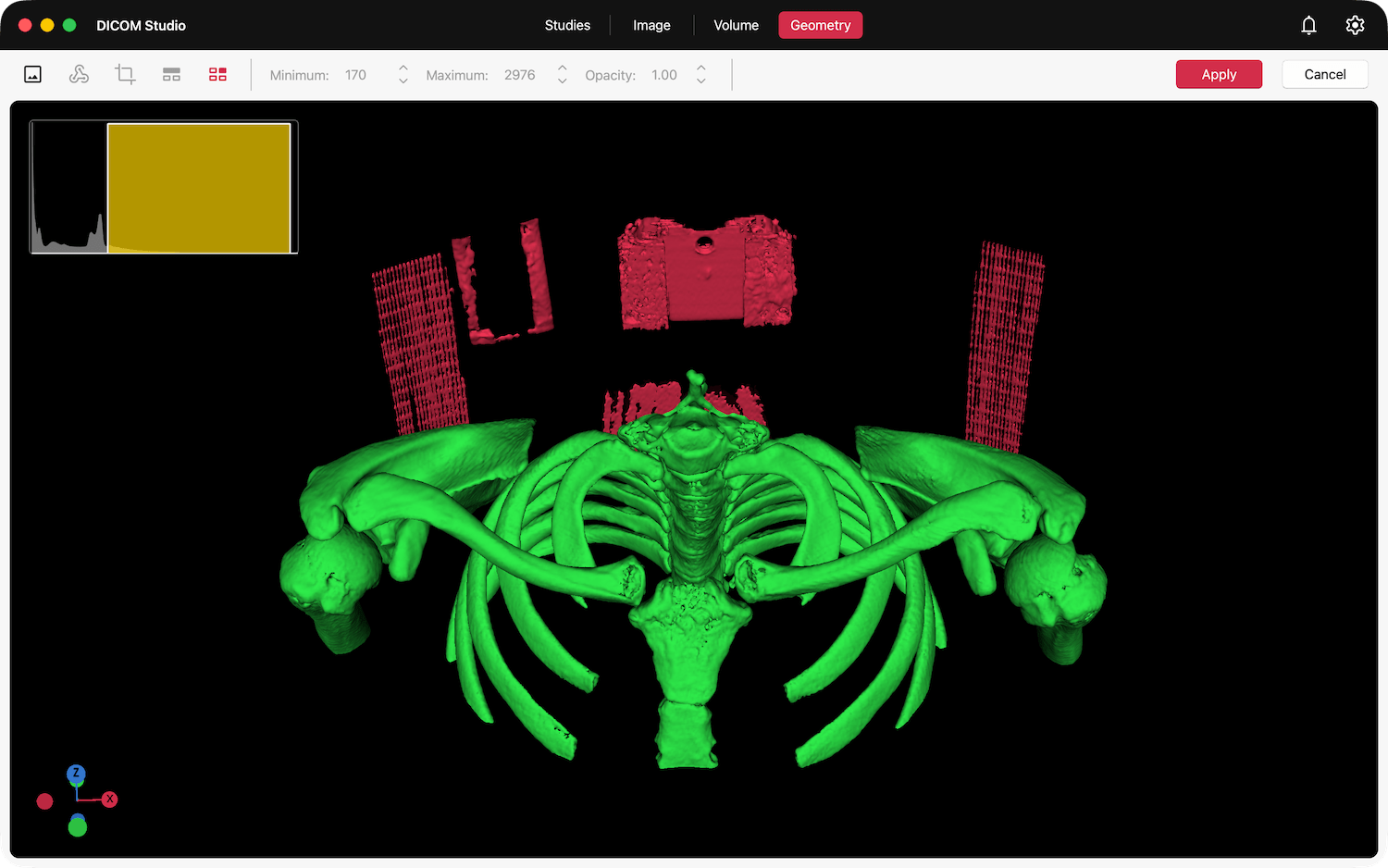
Click the Accept button in the toolbar to discard all parts in red. Click Cancel to deactivate this tool.
