Add New Studies
New studies are added to DICOM Studio in four steps:
- Select DICOM Folder Location.
- Select Series for Import.
- Selected Series is loaded onto the 2D Image Views.
- DICOM Study is added to the Recents library in the Studies tab.
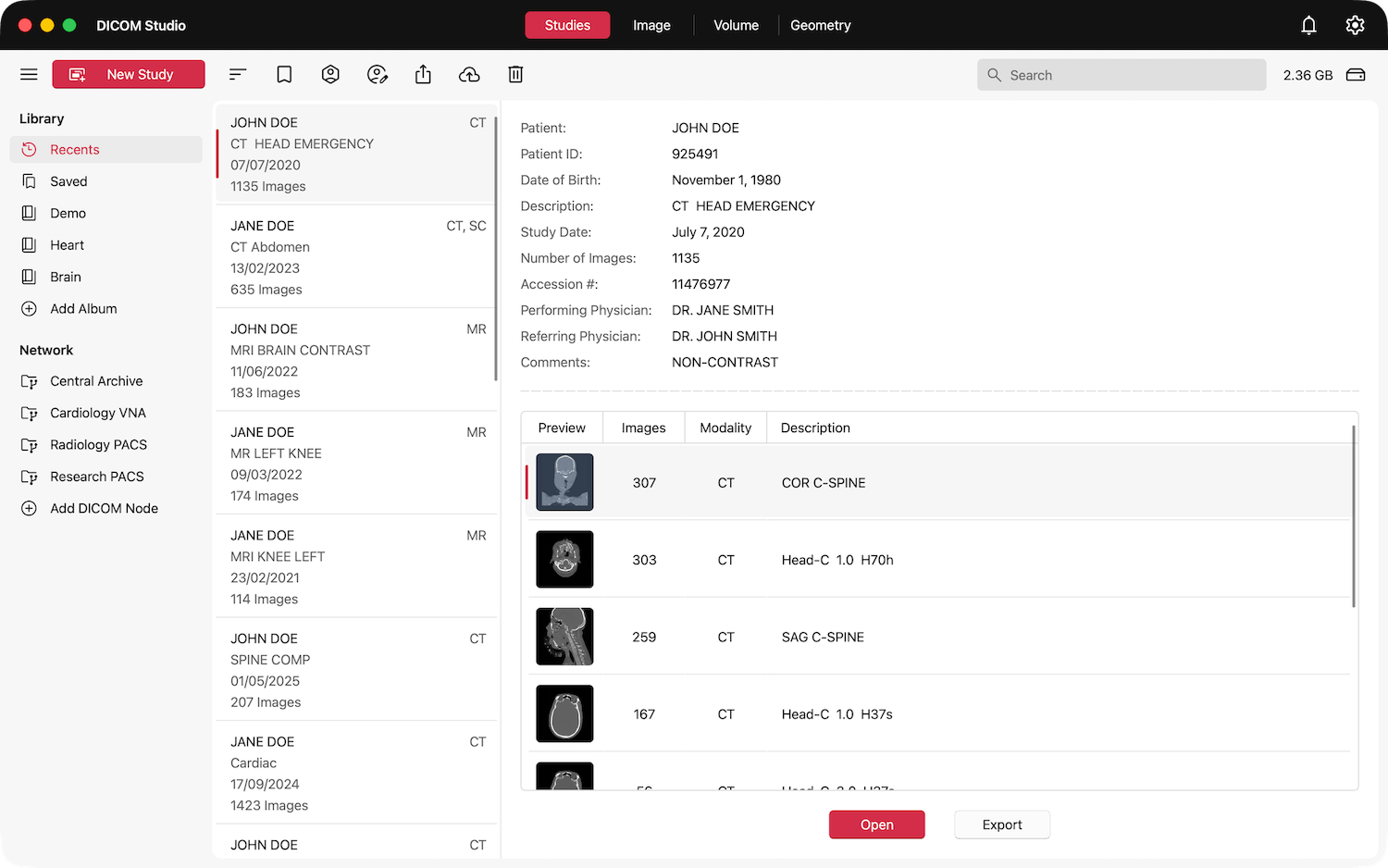
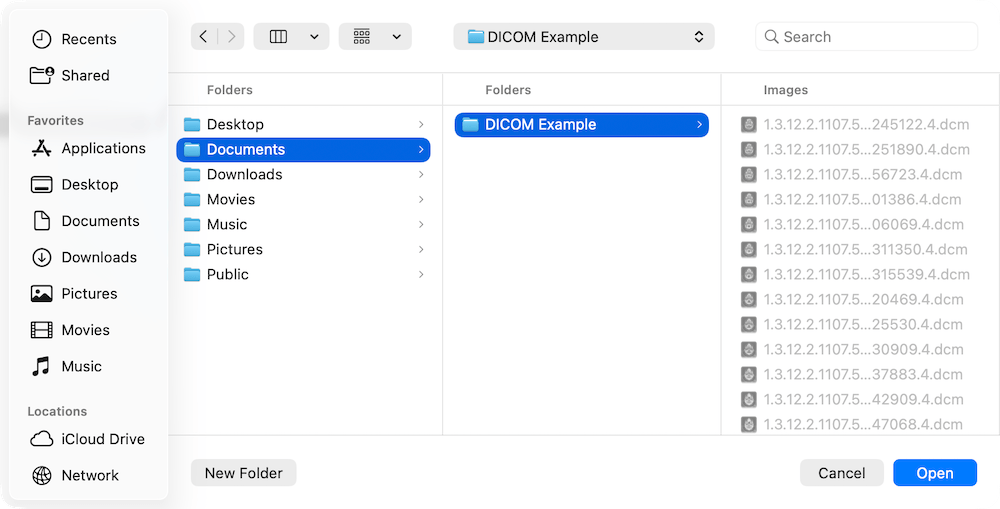
First, select the New Study button. A dialog will open, from which you can select the folder containing DICOM images to import. Once selected, DICOM Studio will scan for DICOM files recursively from the top-level of the selected folder, going down through all subfolders, allowing you to select a parent folder and pick the DICOM Series you are after from the resulting previews.
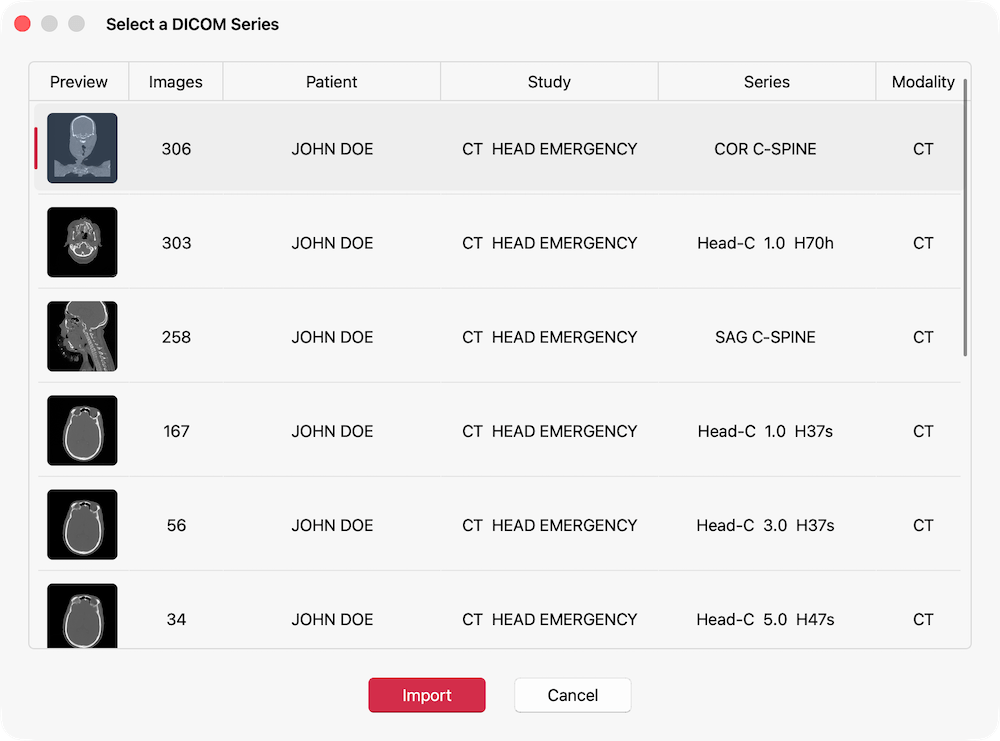
Next, DICOM Studio will group all Images in the selected folder into their respective series, and give you a preview of each, as illustrated in the example below. The table includes a summary of each series including a preview image, number of images in the series, patient names, study description, series description and modality. Select the row containing the series you wish to import, and click the 'Import' button.
Note that if only one series is detected in the folder you select, this step will be skipped.
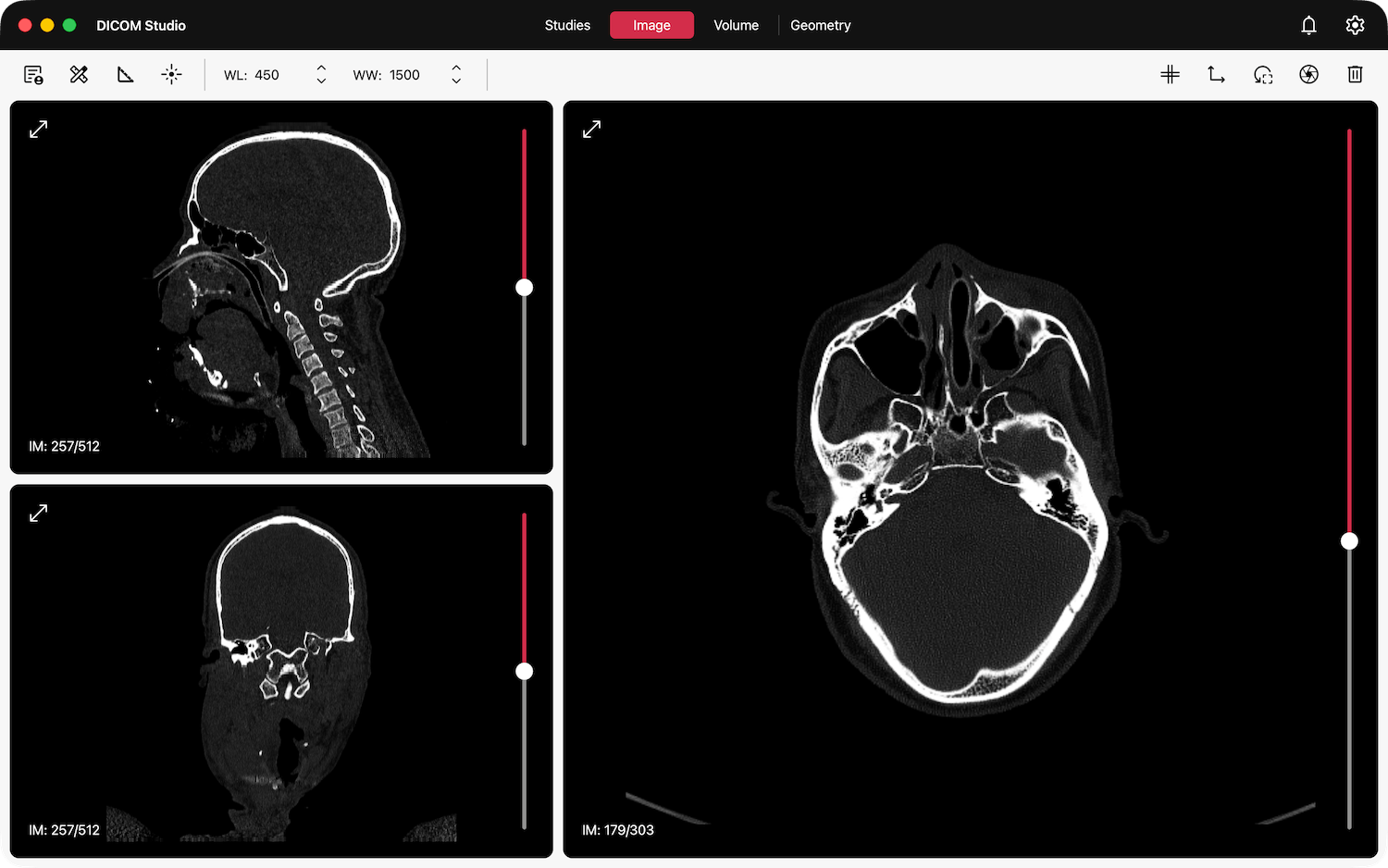
Slices in all 3 orientations will be loaded onto the three views in the Image tab. The larger one on the right will contain the original orientation of the DICOM images. Slices in the other 2 orientations are reconstructed, and loaded onto the remaining 2 views on the left. Learn more on how to interact with the image views, and analyze your images, in the 2D Imaging section.
Finally, the DICOM Study is added to the Recents library.