Window Level & Window Width
In the visualization of DICOM images, Window Level and Window Width are critical attributes that control how raw pixel intensity values are mapped to a visible grayscale range on screen. This is called windowing or leveling, and it's fundamental to diagnostic image display.
DICOM images (especially CT) store pixel data across a very wide dynamic range. CT, for instance, uses Hounsfield Units (HU) spanning roughly -1024 to +3071 (a range of ~4096 values). Human monitors can only display 256 shades of gray (8-bit), and the human eye can only distinguish maybe 30-70 simultaneous shades at once. Windowing solves this by selecting a subset of the full range and stretching it across the full 0-255 display range, discarding everything outside as pure black or pure white.
Window Level / Center (DICOM Tag: 0028, 1050)
Also called the Level, this parameter defines the midpoint of the intensity range you want to display. Pixel values at this number will appear as mid-gray on screen. In practice, values below center - (width/2) are rendered pure black, while values above center + (width/2) are rendered pure white.
Window Width (DICOM Tag: 0028, 1051)
Also called the Window, this parameter defines the total span of intensity values that map to the full grayscale range. A narrow window width increases contrast by focusing on a smaller range of pixel intensities, making subtle differences in intensity more noticeable. Conversely, a wider window width reduces contrast by encompassing a broader range of intensities.
Impact on Contrast and Brightness
Adjust the Level and Window from the toolbar using the widgets below. As soon as you open an image in DICOM Studio, they are available. Changes are applied to all Images in view instantly, giving you immediate visual feedback.

Narrowing the window width enhances contrast, which is useful for identifying fine details. Adjusting the window level can shift focus between darker and lighter regions, aiding in specific diagnostic tasks.
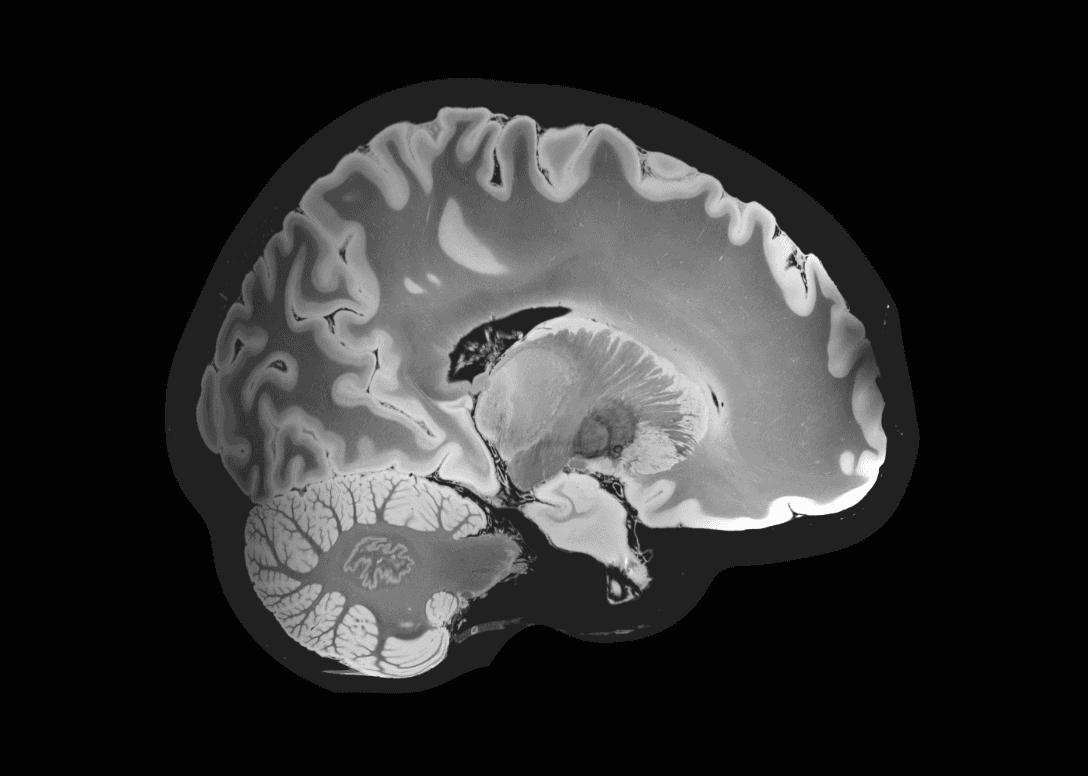
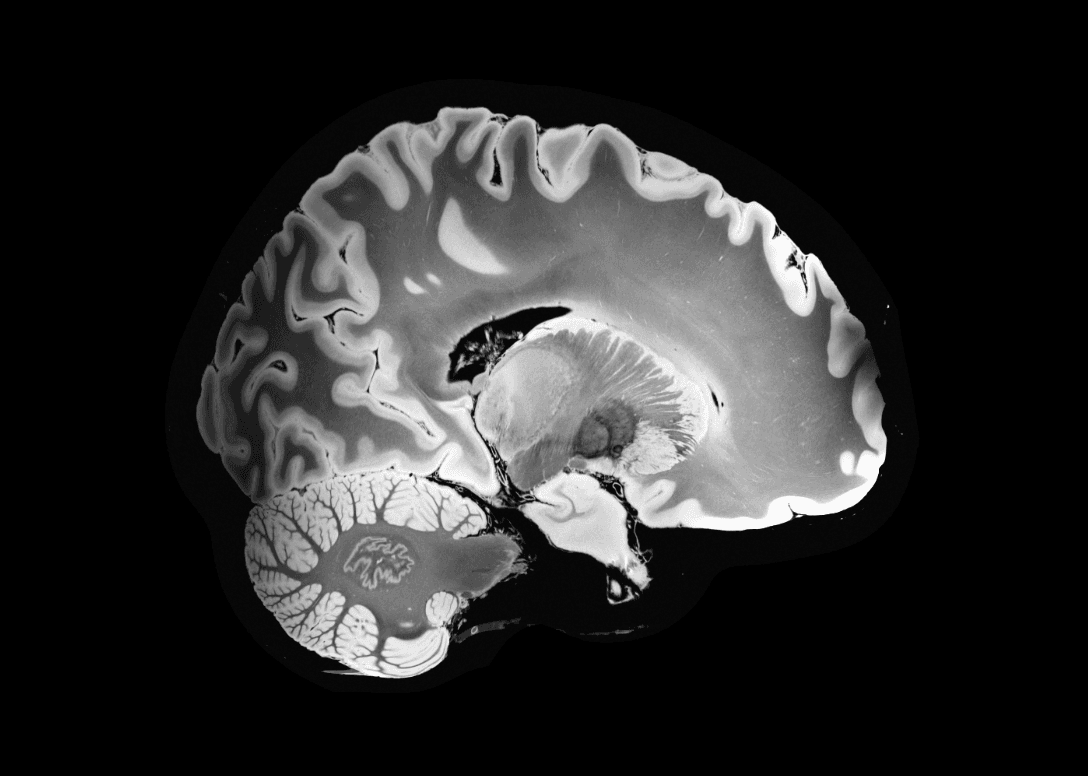
In DICOM Studio, these two parameters are not just applied in grayscale, but to any active colormap. Learn more about colormaps in 2D Imaging in the Apply Colormaps section.
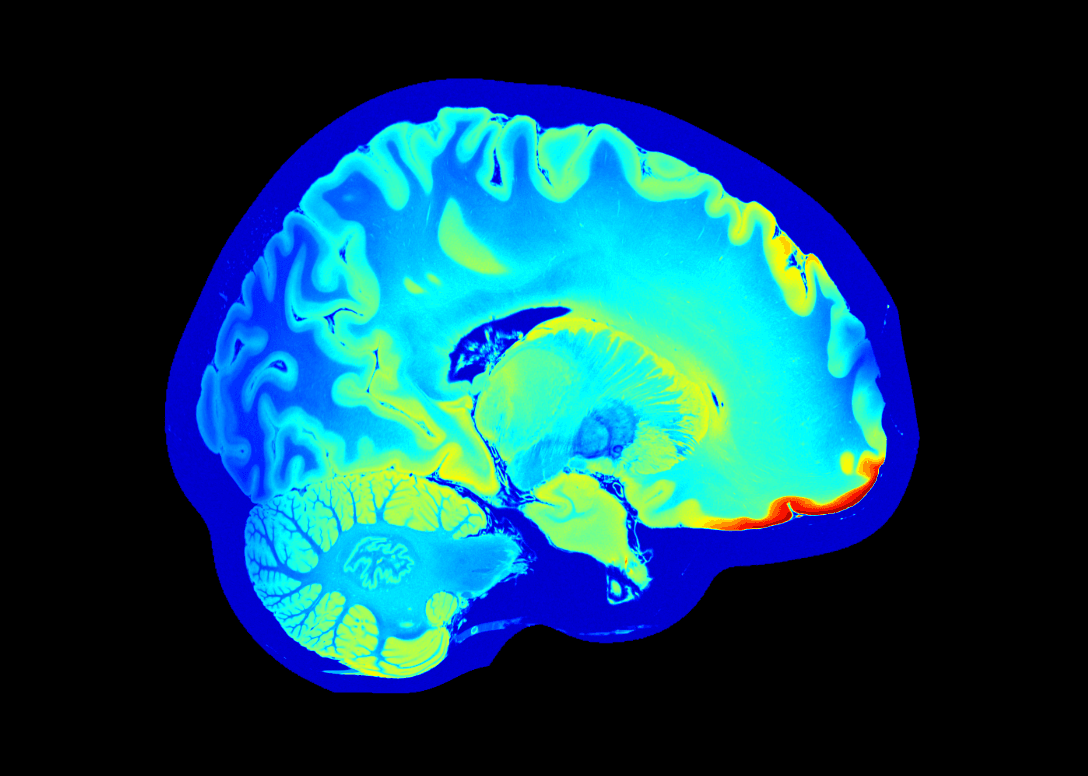
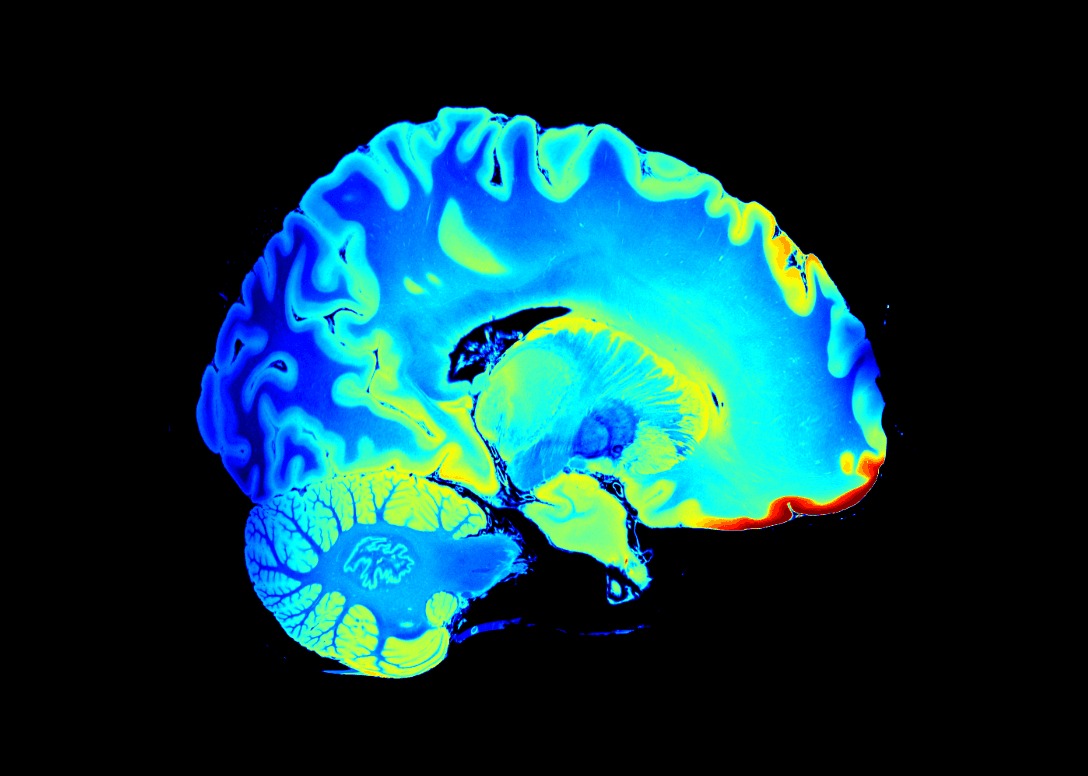
Window Level & Window Width Presets
Apply pre-defined Level and Window pairs from the Image Menu in the menubar: Image -> Window Level & Window Width Presets. Available options include:
- CT-Bone
- CT-Air
- CT-Brain
- CT-Abdomen
- CT-Lung