Save Studies
DICOM Studio has a dedicated storage section for studies that you want to add to your collection, located on your device. Unlike the Recents library that only keeps track of the last 20 studies that you previously opened in the application, the Saved library maintains a copy of the imported study. If you delete or move the folder containing the DICOM Study that you previously imported, the Recents library will lose track of it, as it only maintains a reference to the original location. Conversely, when you save a study, it will always be available in DICOM Studio, until you delete it from record.
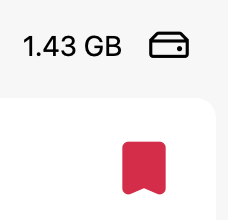
You can save a study from the Recents library by clicking the button in the toolbar with the bookmark icon above. Once clicked, DICOM Studio will promptly copy all the contents of the original DICOM folder to a dedicated location, and keep a record of it. The total storage indicator will be updated to include the disk space occupied by the saved study. In addition, the study preview will include a filled bookmark icon at the top-right, as in the example below. This allows you to know which studies are already saved while viewing the Recents library, and which aren't.
Once saved, you can delete the original DICOM folder on your device if you wish. This feature is particularly useful for studies located in an external device/location, such as a CD. You can simply import the study, save it, and eject the external device. You will have the study available to you in the Saved library, for as long as you need it.
Albums
As you add more and more studies to your Saved library over time, the list could get infinitely long. You can always search for a study using the Search widget, however, you can also add saved studies to Albums. To create an album, click the Add Album button in the sidebar.
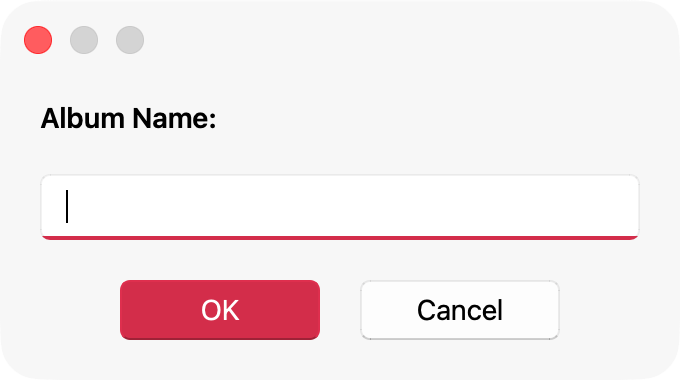
Once clicked, a dialog will open. Enter your album's title and click OK
The new album will be added to the sidebar.
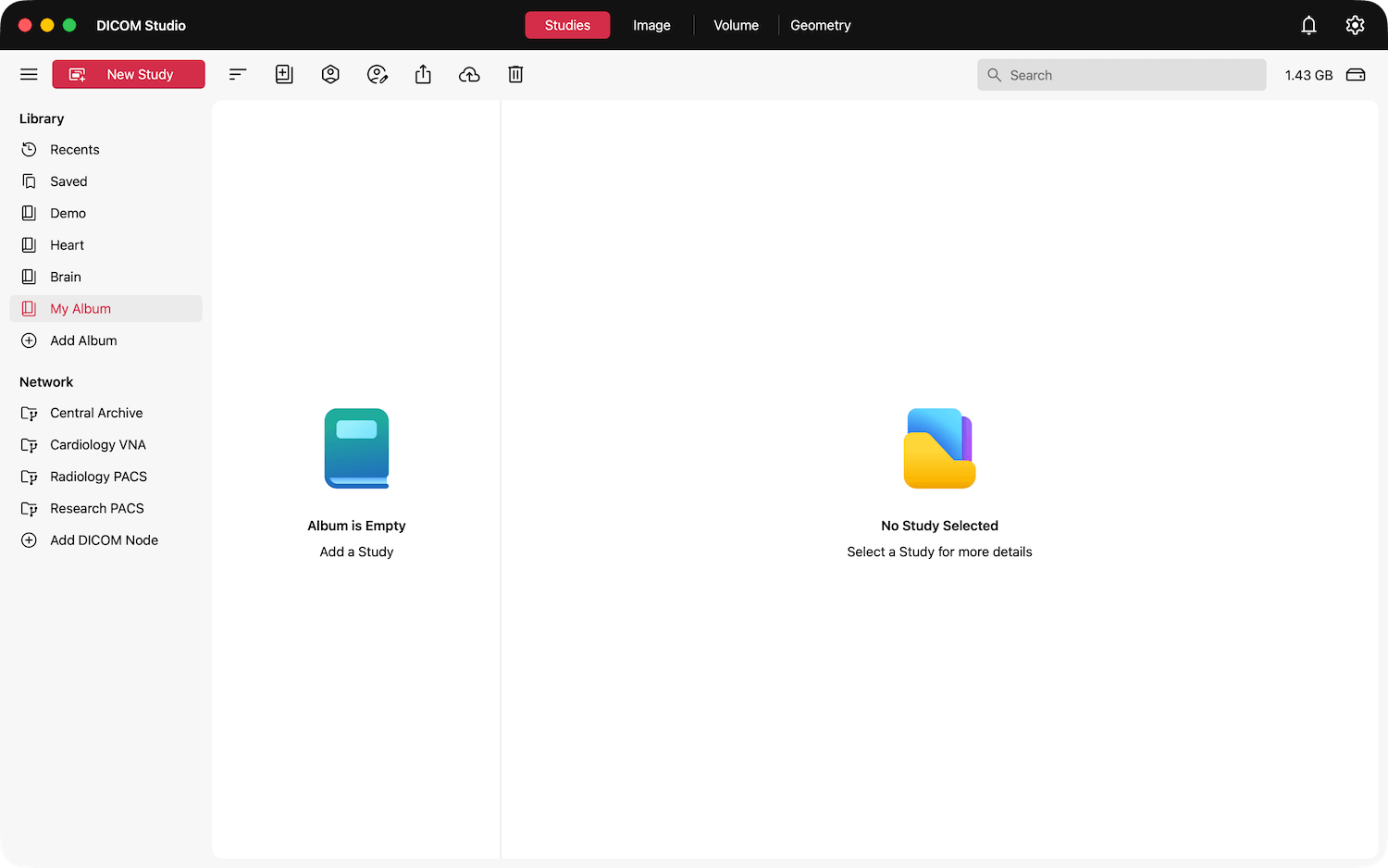
You can now add studies to this album from the saved library.
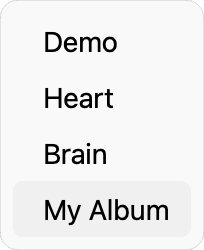
Select the row belonging to the study you want to add to the album from the study previews. Click the button in the toolbar with the icon above, and a menu with all available albums will appear. Pick the new album, and the selected study will be added to it.
Note that when a study is added to an album, a separate copy is not created. Studies in an album maintain a reference to the Saved library. This means that the Saved library and Albums have a parent-child relationship. If a study is deleted from the Saved library, it will also be deleted from any Album that it had been added to.