Crop Tool
The Crop Tool in the Geometry tab is useful in two ways:
- Revealing internal structures.
- Precise region of interest (ROI) selection.
Activate this tool by clicking the Crop Tool button in the toolbar, with the icon below.
A box widget will be placed on your model. The widget has a handle on each face, represented by a red sphere. Select a handle and drag inwards to effect a crop.
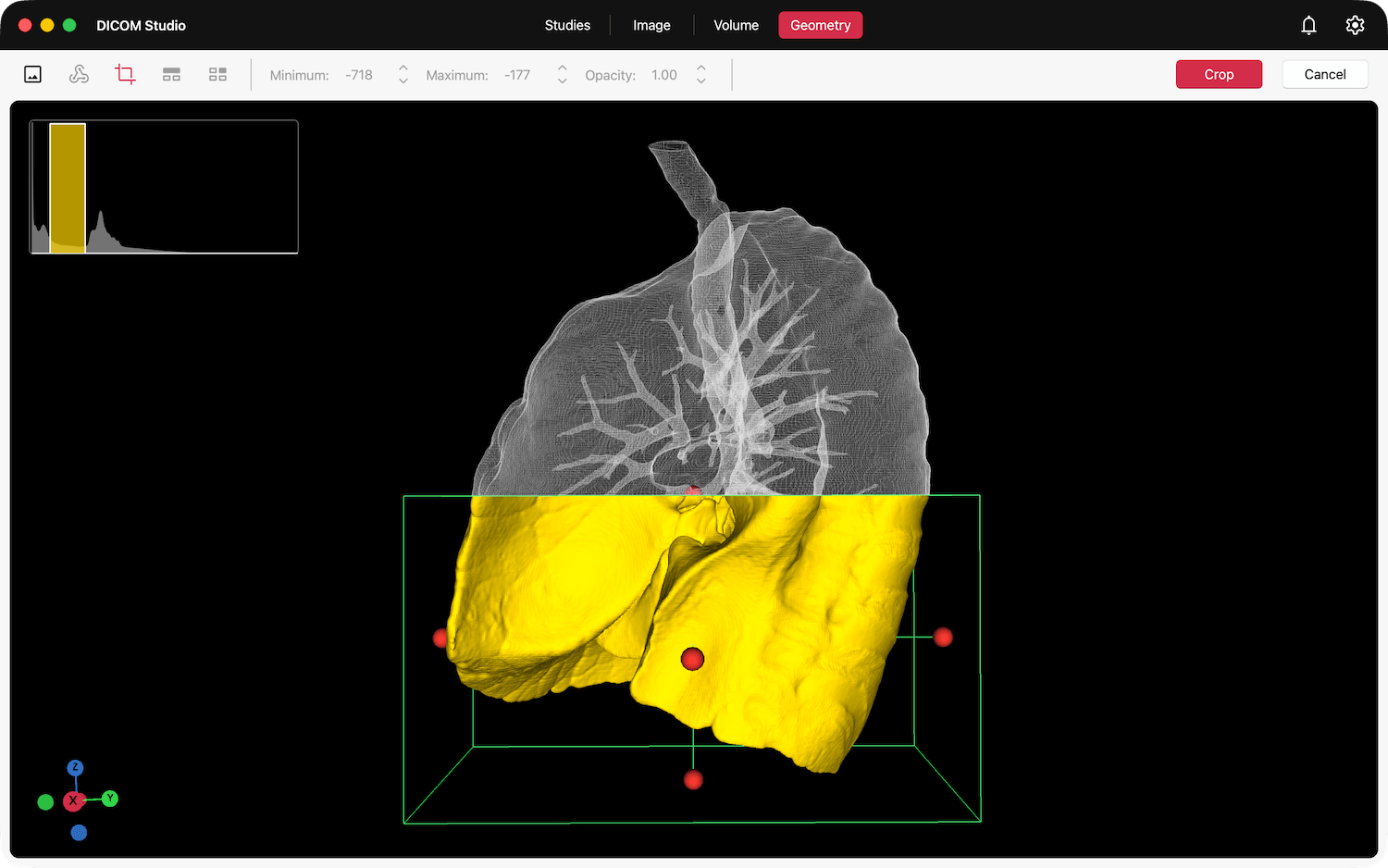
When a handle is dragged inwards, the clipped region is represented by a wireframe, giving you visual feedback of the portion of the model that will be discarded.

Click the Crop button in the toolbar to save the crop. Click Cancel to undo any changes.
Crop with Closed Edges vs Open Edges
DICOM Studio can handle the crop in two ways:
- Crop with Closed Edges: A flat surface is generated to fill the edges of the clipped surface, making the model watertight.
- Crop with Open Edges: The edges of the clipped surface are left open.
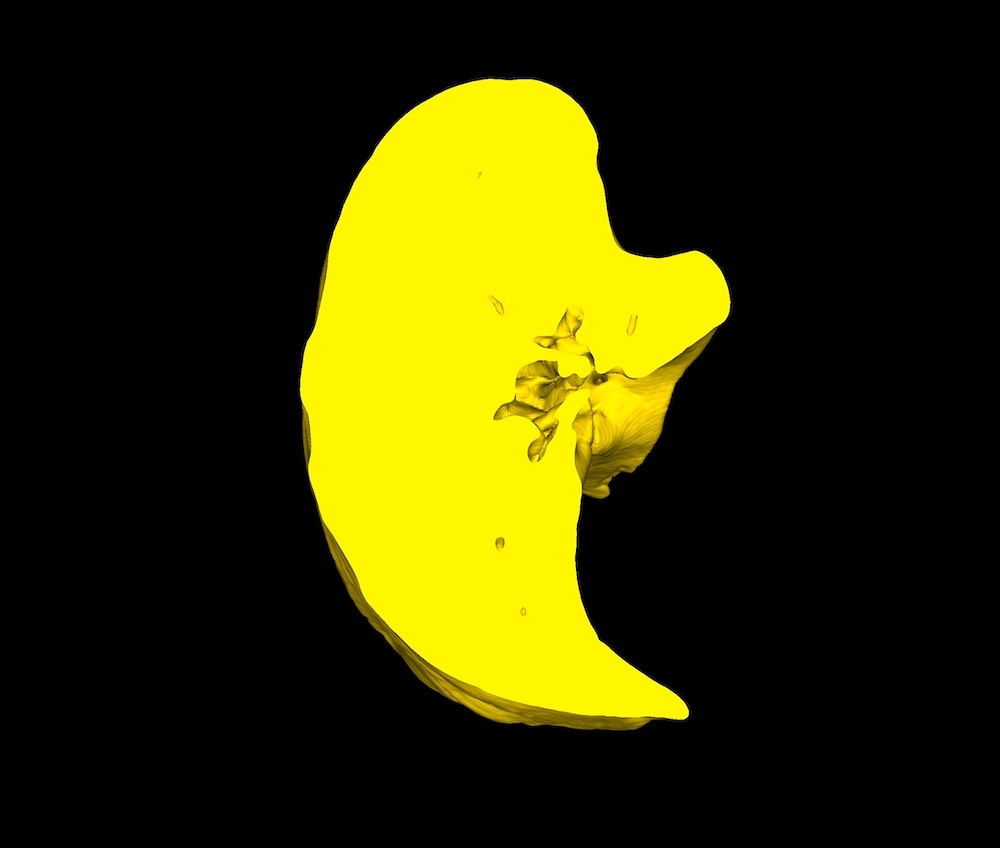
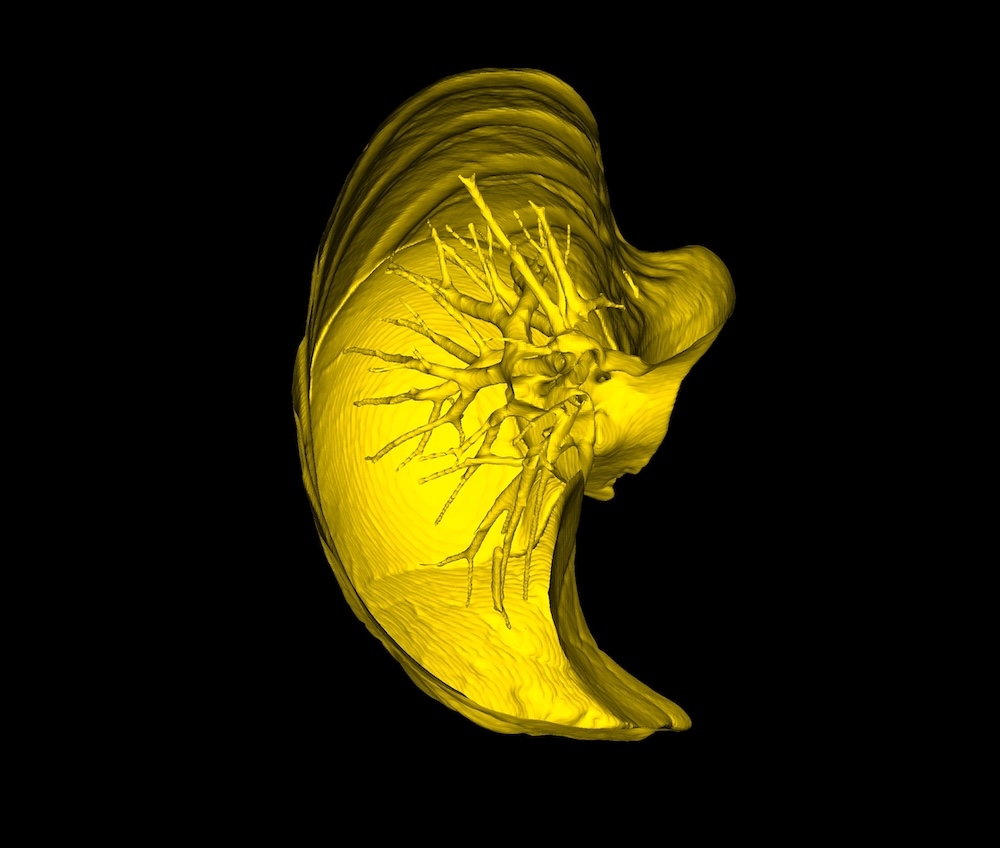
The two images above demonstrate this. On the left is a crop with Closed Edges. On the right is the same crop, but with Open Edges. Crop with Closed Edges is active by default. You can disable this in the menubar under the Geometry menu: Geometry → Crop with Closed Edges.
Crop with Closed Edges is particularly useful if you want to export the 3D Model for external purposes such as 3D printing. In such cases, a watertight model is required.