2D IMAGING
Measure Tools
Physicians and radiologists commonly measure specific tissues, organs, and anatomical structures to aid in diagnosis and treatment planning. Common clinical applications include:
- Tumor Monitoring: Measuring tumor size changes over time to assess treatment response.
- Orthopaedic Analysis: Measuring bone alignment angles for surgical planning.
- Opthalmology: Assessing macular grid thickness for retinal diseases.
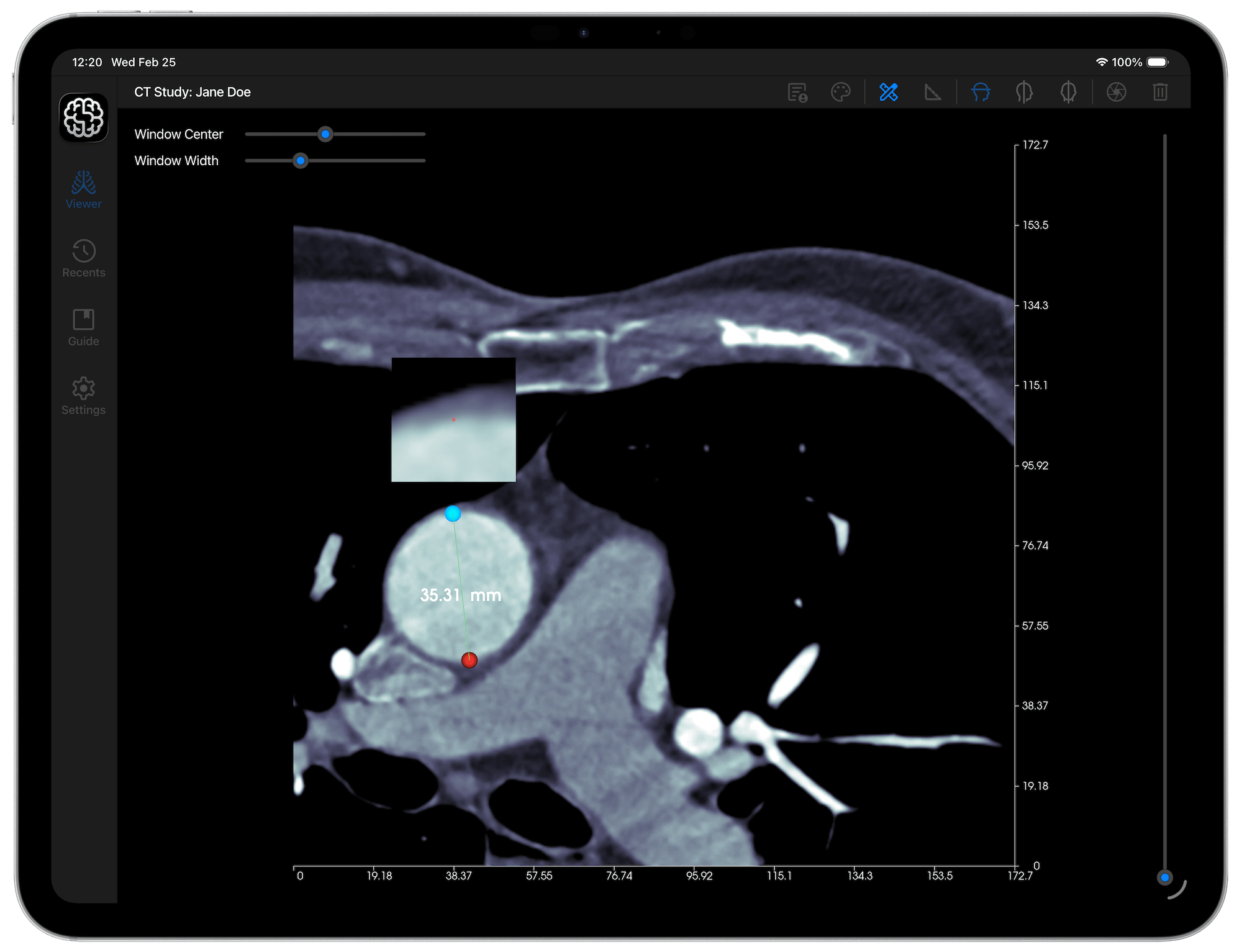
DICOM Studio provides tools for measuring distances and angles between selected points. Learn how to use each of these below.
Distance Tool
This tool works as follows:
- Tap the 'Distance Tool' button in the Viewer toolbar.
- Tap on the image where you intend the initial point of the measurement to be placed. A red handle will be placed there.
- Place a second point on the image, marking the distance you want measured.
- Once both points are placed, you can drag either handle to refine your measurement. A magnifier will appear above the handle that you drag, giving you a more precise view of where the point is.
When you are done, tap the 'Distance Tool' button once again, to deactivate this tool.

Angle Tool
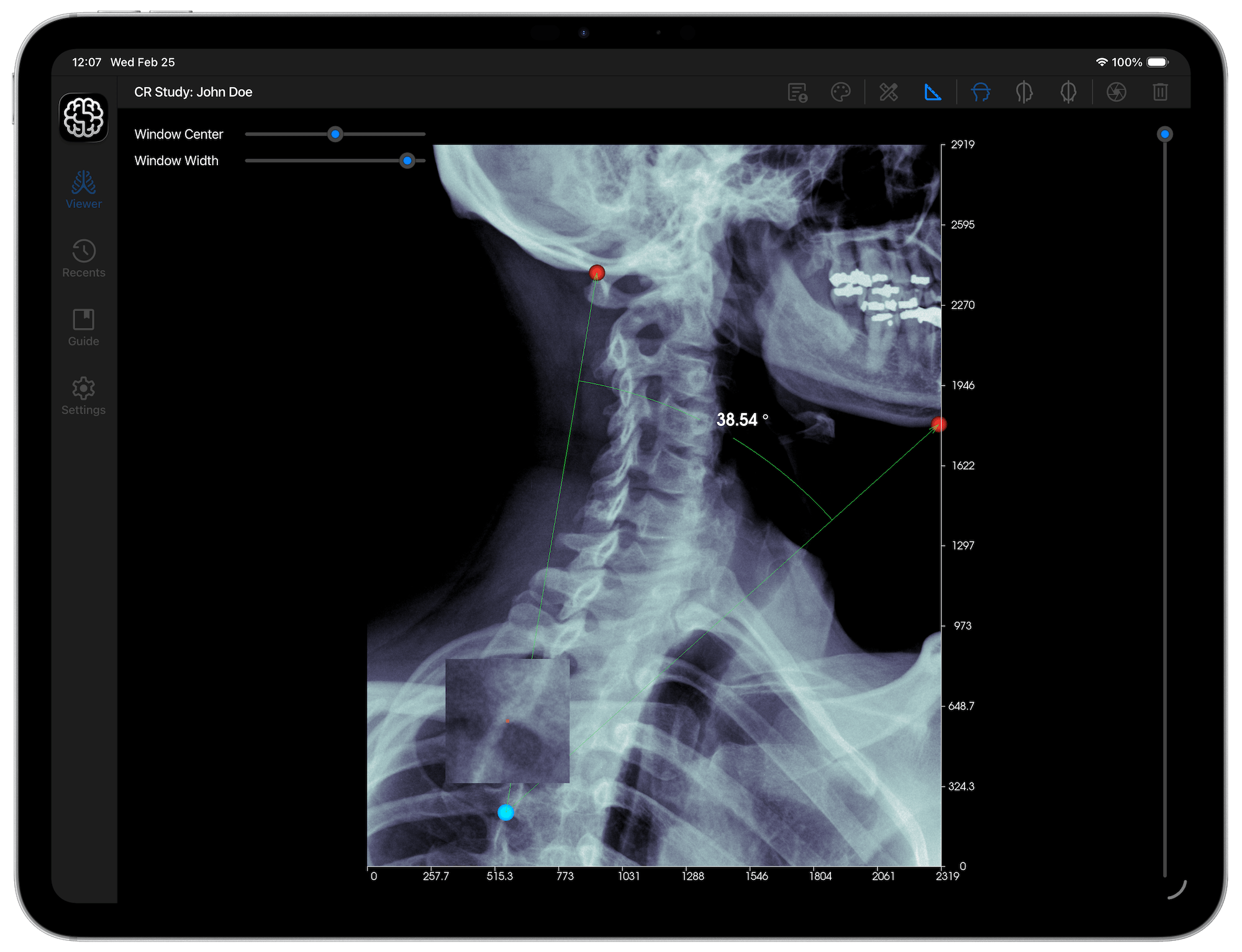
This tool works by calculating the angle between three points that you place on an image. The second point acts as the vertex, with the first and third acting as the arms of the angle. Follow the steps below to create an angle measurement:
- Tap the 'Angle Tool' button in the Viewer toolbar.
- Tap on the image where you intend the initial point of the angle measurement to be placed. A red handle will be placed there.
- Repeat this process two more times to create the initial side, vertex and terminal side of the angle.
- Once complete, the angle between the three points will be displayed.
- You can drag any of the three handles to refine your measurement. A magnifier will appear above the handle that you drag, giving you a more precise view of where the point is.
When you are done, tap the 'Angle Tool' button once again to deactivate this tool.

© 2026 Marceda Ventures Limited.